

HeiChat Mobile App
Setup > Advanced Settings > Mobile App is where you download the HeiChat mobile app, create access codes for your team, and keep up with customer conversations when you are away from the Shopify admin.
The app is available for iOS and Android. It is not publicly listed in the App Store or Google Play: iOS uses Apple's TestFlight, and Android uses a direct download. Sign-in is controlled by access codes, with one code per device. Every plan can use the mobile app, and the number of access codes you can create depends on your plan.
What your team can do from the app
- Check conversations and customer messages anytime, anywhere.
- Take over a conversation from the AI and reply in real time from a phone.
- Receive push notifications for new conversations, new orders from conversations your team handled, and new support tickets.
- Reply across languages with built-in translation.
Mobile access is most useful for support leads, on-call agents, and teams monitoring live chat during campaigns or outside office hours.
Where to find it
Go to:
Setup > Advanced Settings > Mobile App
The page contains:
- Download instructions and a QR code for iOS and Android
- The Manage Access Codes section
- A support contact if you need help
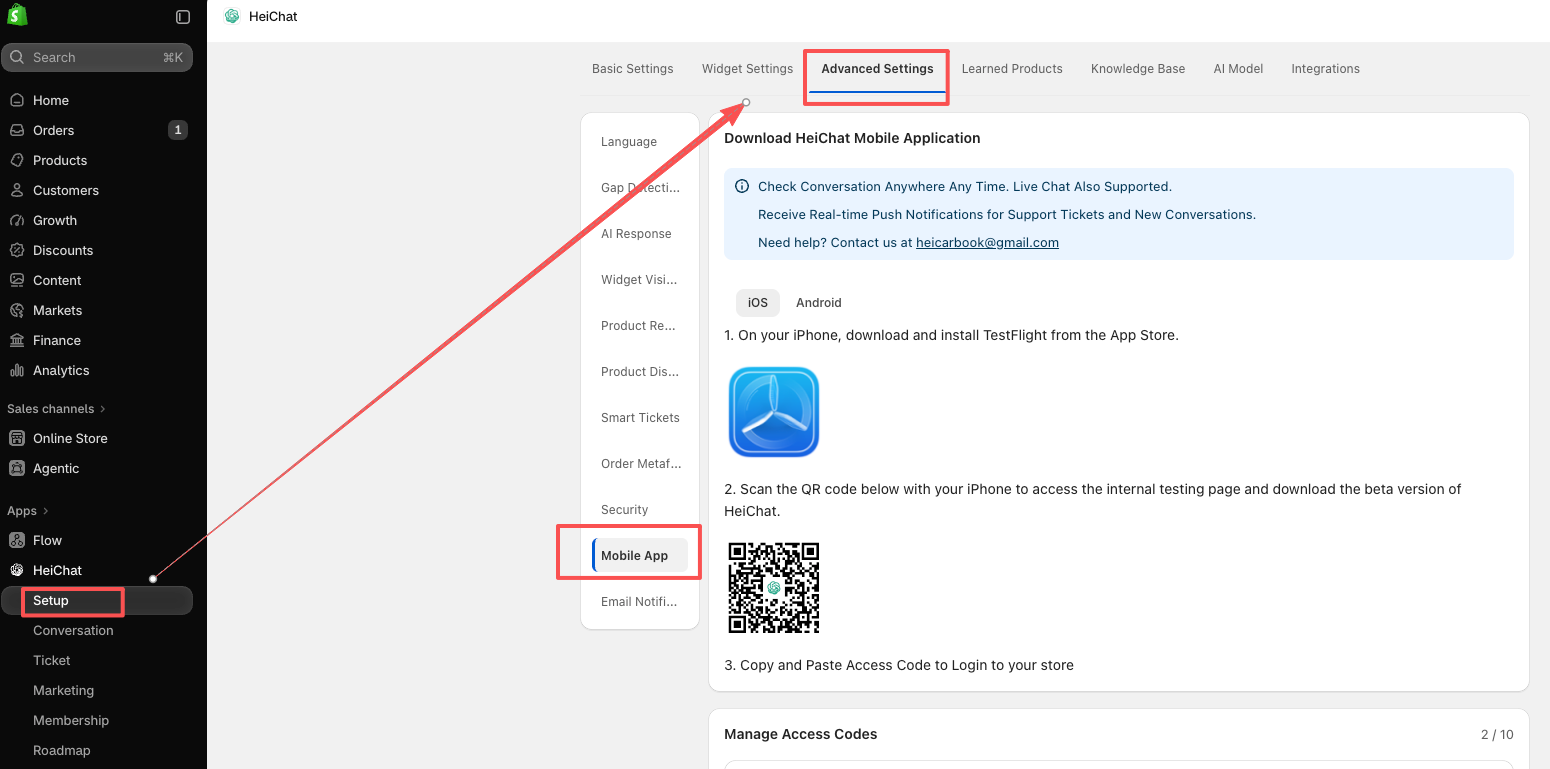
Mobile access is controlled by access codes. The number of devices you can authorize depends on your subscription plan.
Install the app
iOS
- On your iPhone, download and install TestFlight from the App Store.
- On the Mobile App page, open the iOS tab and scan the QR code with your iPhone. This opens the TestFlight internal testing page for the HeiChat beta.
- Install HeiChat from TestFlight and open it.
Because the iOS app is distributed through TestFlight, it does not appear in the public App Store. Use TestFlight to install updates when a new build is available.
Android
- On the Mobile App page, open the Android tab.
- Scan the QR code with your Android phone to open the download from Google Drive.
- Download and install the app. If your phone asks for permission to install apps from this source, follow the on-screen prompt.
Sign in with an access code
- Create an access code in Manage Access Codes (see below).
- Open HeiChat on the device, paste the access code, and sign in to your store.
Each access code is intended for one device. To use the app on another phone or tablet, create a separate code for that device.
Manage access codes
Access codes are the credentials used to sign in to the mobile app. After creation, the list shows only a masked version of each code, and the full code is shown only once.
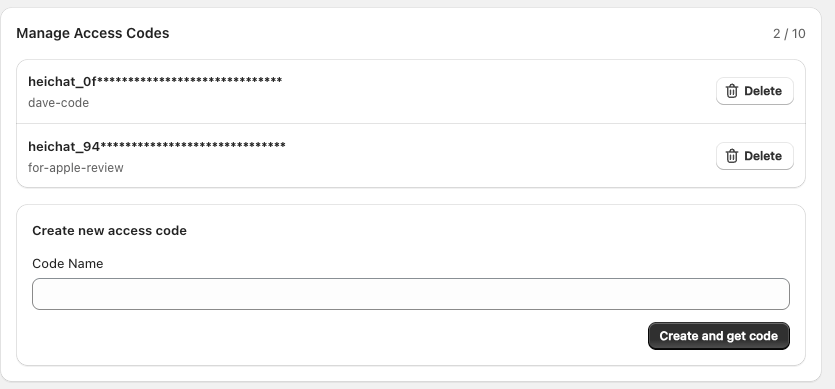
Create an access code
- In Manage Access Codes, enter a Code Name that identifies the device or team member, such as
Support Lead iPhoneorCS Agent Android. - Click Create and get code.
- Copy the generated code immediately and save it in a secure place. The full code is shown only once.
- Paste the code into the HeiChat mobile app to sign in.
Descriptive names make it easier to see which code belongs to which device or person.
One code per device
- Each access code is intended for one device only.
- If a device is replaced, create a new code for the new device and delete the old one.
- Do not share a single code across multiple phones or tablets.
Plan limits
The counter at the top right of Manage Access Codes shows how many codes you are using out of your plan's limit, for example 2 / 10.
- Pro: up to 1 access code
- Pro Plus: up to 3 access codes
- Pro Plus Plus: up to 5 access codes
- Pro Max: up to 10 access codes
If your plan is not listed, the counter on the page shows the limit for your current plan.
If you reach the limit, delete a code that is no longer in use or upgrade your plan.
Delete an access code
Click Delete next to a code to revoke it. The device signed in with that code can no longer use it to access the app.
Delete or rotate codes when:
- A phone or tablet is lost, replaced, or no longer used.
- A team member leaves or no longer needs mobile access.
- You want to reset access for a device.
Push notifications
With the app installed, you can receive real-time push notifications for:
- A new conversation, including a customer entering Live Chat when live chat is enabled
- A new order resulting from a conversation your team handled
- A new support ticket submitted by a customer
Each agent can adjust notification preferences inside the app, so a ticket-focused agent can enable only ticket alerts while on-call agents keep conversation alerts on.
Live chat takeover and translation
The app is not read-only. Agents can join an ongoing conversation, take over from the AI, and reply to the customer directly from their phone. This is useful for urgent tickets, high-value conversations, and peak traffic periods.
Built-in translation can translate:
- The customer's messages into the agent's preferred language.
- The agent's replies into the customer's language.
This lets a single-language team support customers in other languages without switching tools.
Recommended practices
- Give mobile access only to trusted staff, such as support leads and on-call agents.
- Create one descriptively named code per device.
- Delete or rotate codes when a device is lost, replaced, or a team member leaves.
- Check that each agent's notification preferences match their role.
- Review the code list periodically to remove unused devices.
Common questions
Do I need a specific plan to use the app?
No. Every plan can use the mobile app. The number of access codes you can create depends on your plan.
The app is not in the App Store or Google Play. Is that expected?
Yes. iOS distribution uses TestFlight and Android uses a direct download. Use the links and QR code on the Mobile App page.
I lost an access code. Can I see it again?
No. The full code is shown only once. Delete the old code, create a new one, and sign in again.
Can two people use the same access code?
Each code is intended for one device. Create a separate code for each phone or tablet, within your plan's limit.
I am not receiving notifications.
Check the notification settings inside the app, and make sure notifications are allowed for HeiChat in your phone's system settings.
The counter shows I have reached my limit.
Delete a code that is no longer in use, or upgrade to a plan with more access codes.
Need help
If you need help with mobile access, contact heicarbook@gmail.com.