

Integration with Messenger
Before Start
⚠ IMPORTANT: HeiChat AI requires Meta (Facebook) Business API integration.
Please note: You must have an approved Meta Business API account through the Meta Business platform.
Prerequisites:
- A verified Meta Business account
- A Facebook Public Page
Step 1: Getting Started with Messenger Integration
- Go to Shopify and install HeiChat
- https://apps.shopify.com/chatgpt-customer-service-bot
- Set up your HeiChat by configuring the app settings.
Step 2: Setting Up Meta (Facebook) Business Account and App
- Create a Meta (Facebook) Business Account:
- Visit Meta Business Suite.
- Enter your business name, your name, and work email address. Click Next.
- Provide your business details and click Submit.
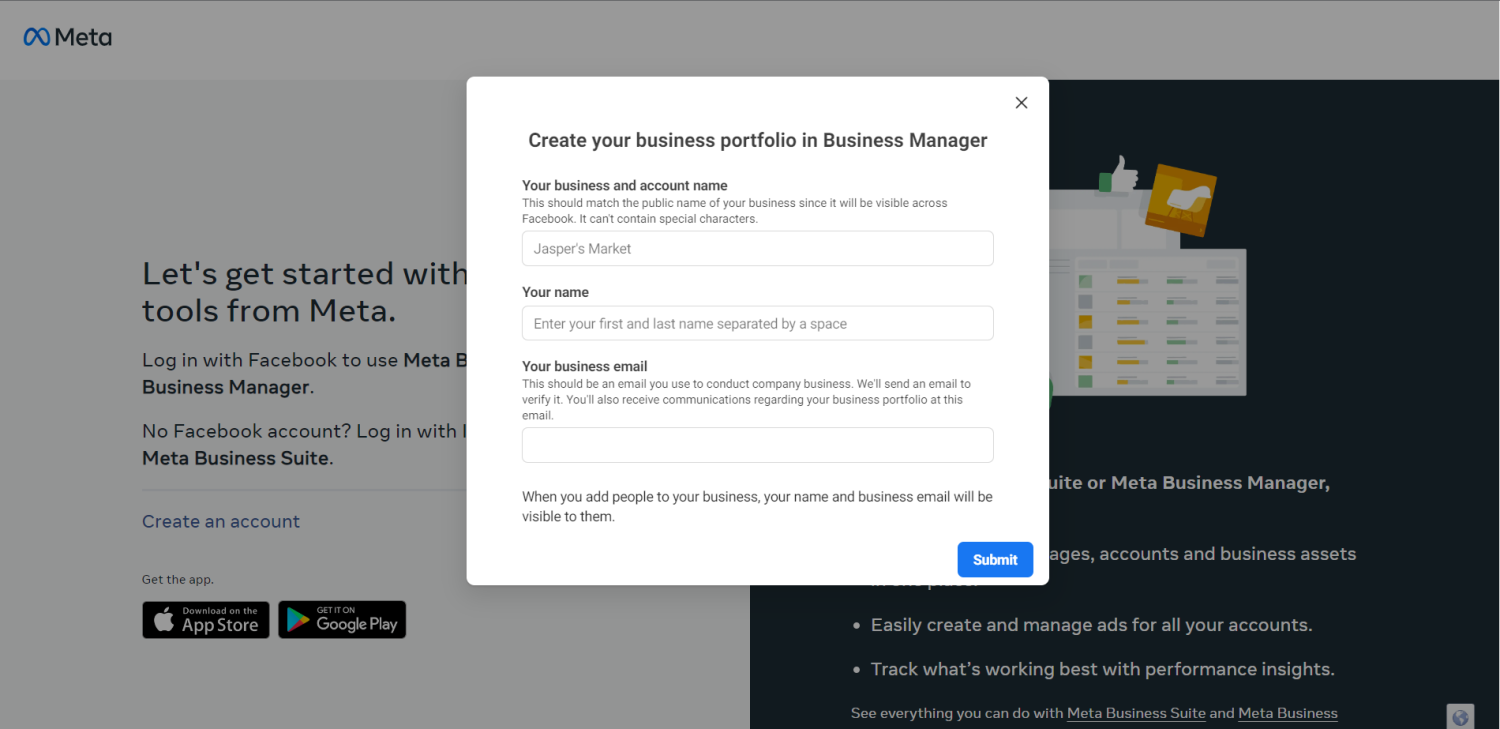
- Create a new Meta (Facebook) App at https://developers.facebook.com/.
- Log in to your Meta (Facebook) Developer Account.
- Select My Apps.
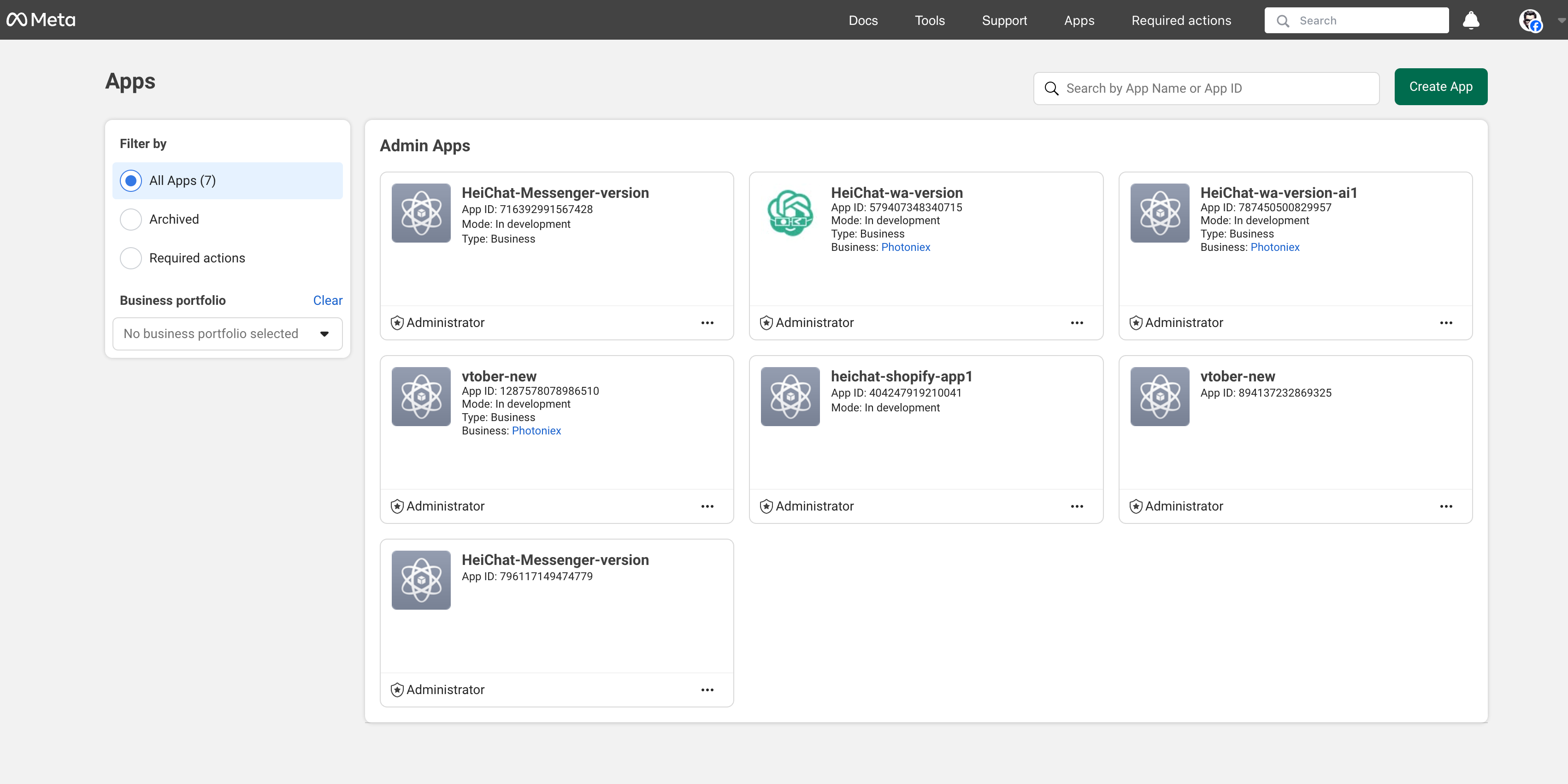
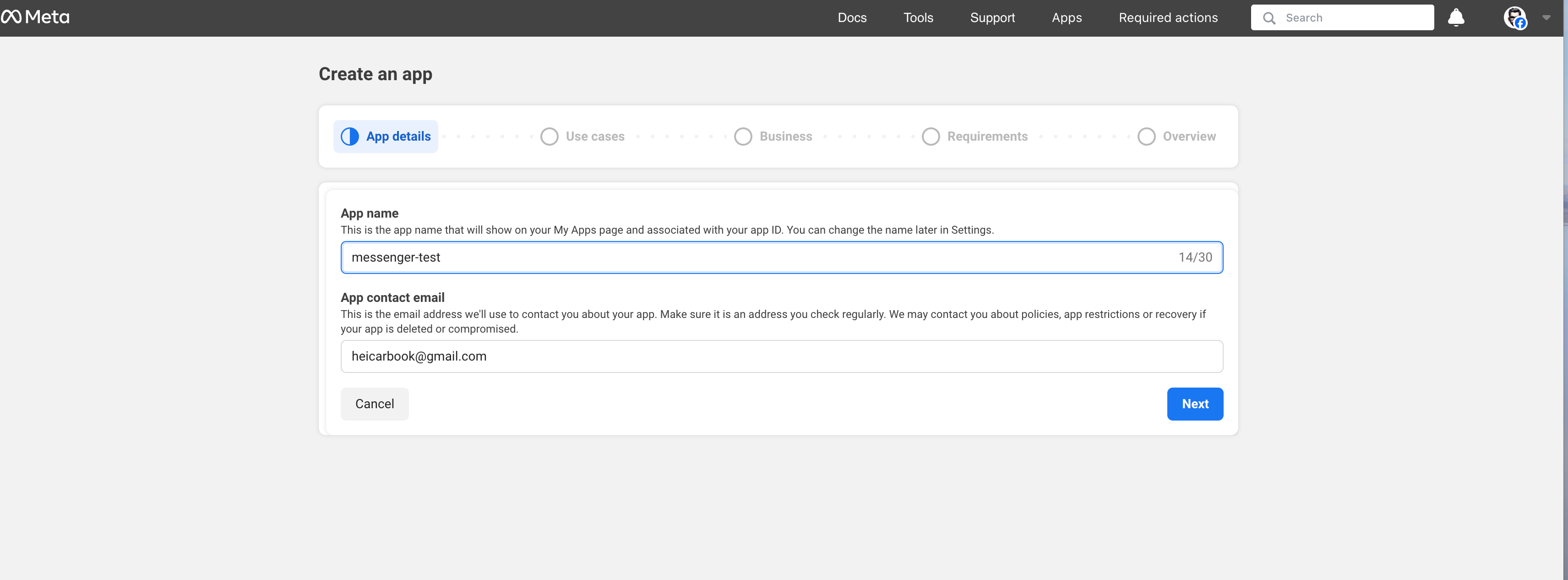
- Click Create App.
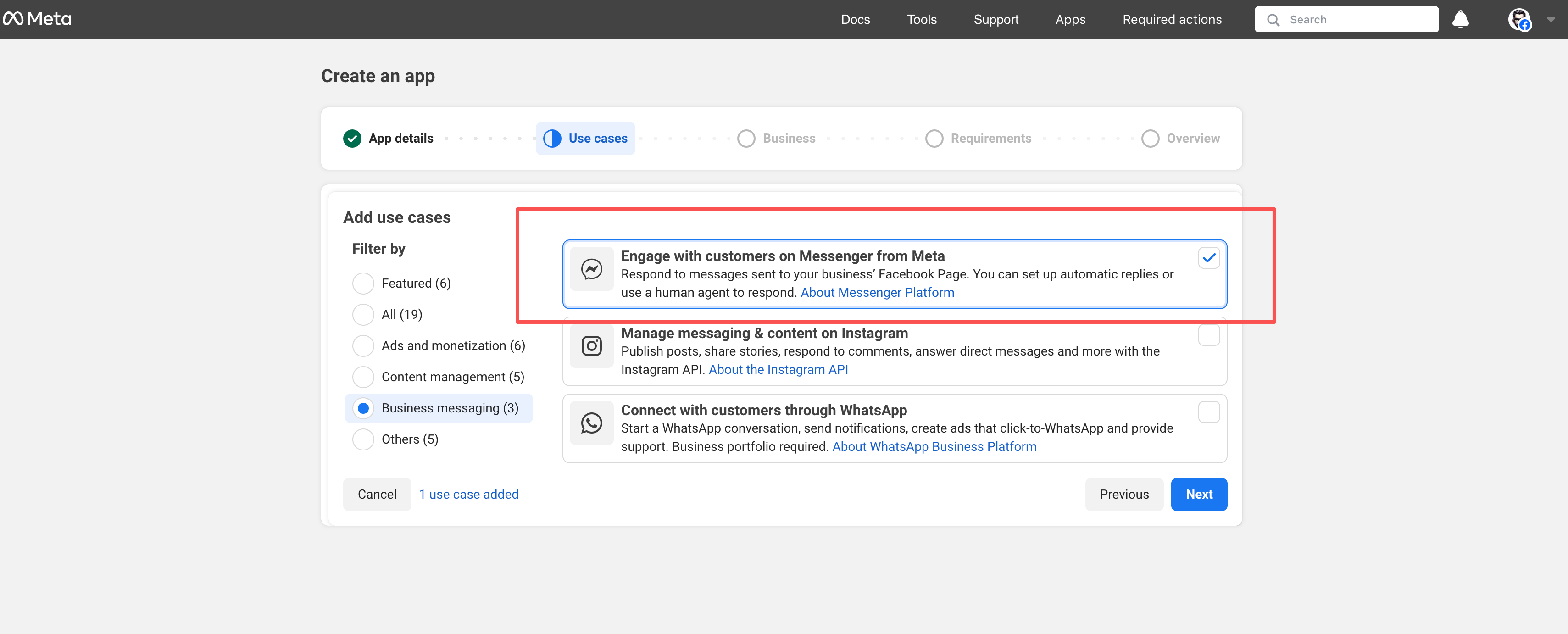
- Choose User Case: "Business messaging - Engage with customer on Messenger from Meta" and click Next.
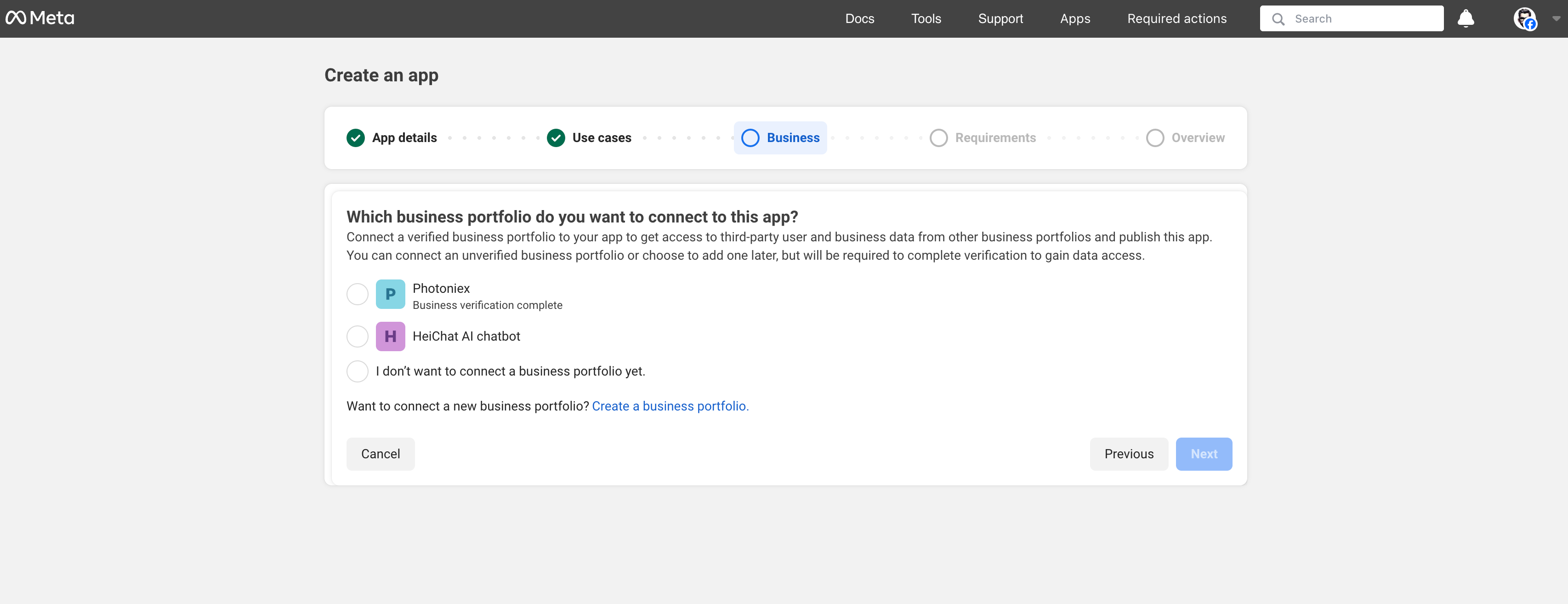
- Choose a business portfolio you want to connect to this app (i.e., which Facebook page you want to link).
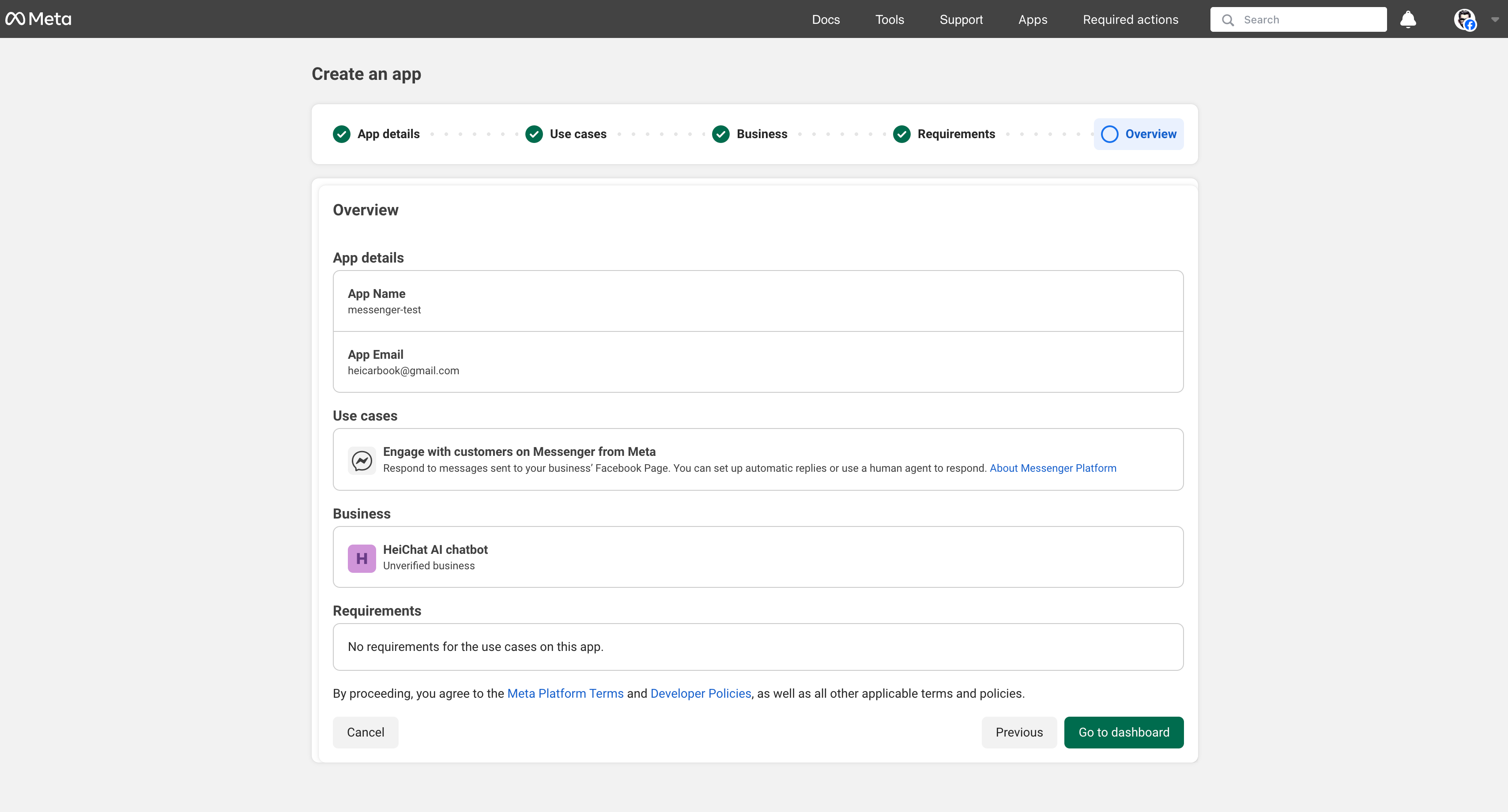
- Overview app details: App Name, App Contact Email, Business Portfolio, and click Create app.
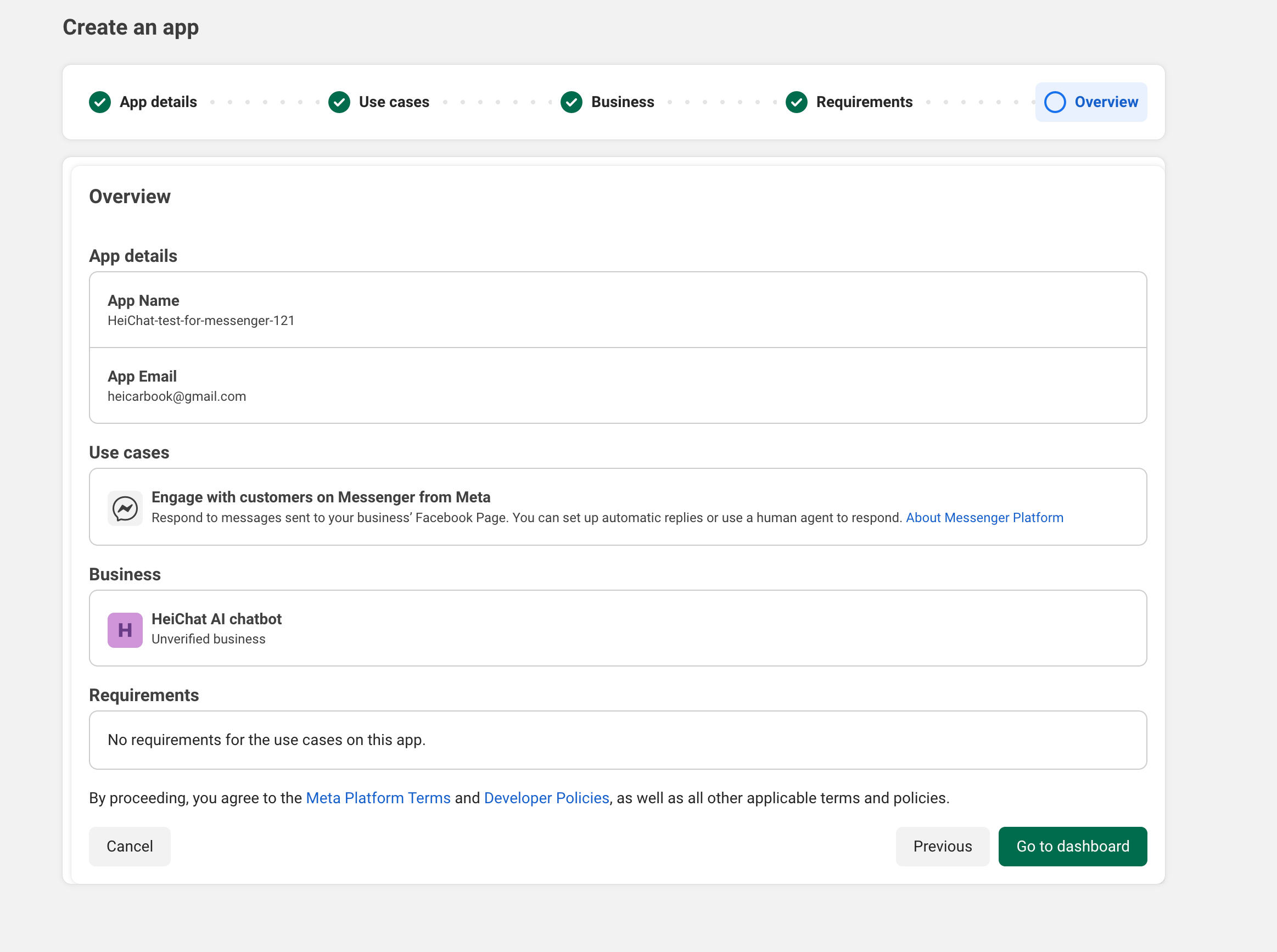
- Confirm the app overview, then click Go to dashboard.
Step 3: Setting Up Meta (Facebook) App for Messenger Integration
- Add Messenger to your Meta (Facebook) App.
- In the Developers Dashboard, choose your app.
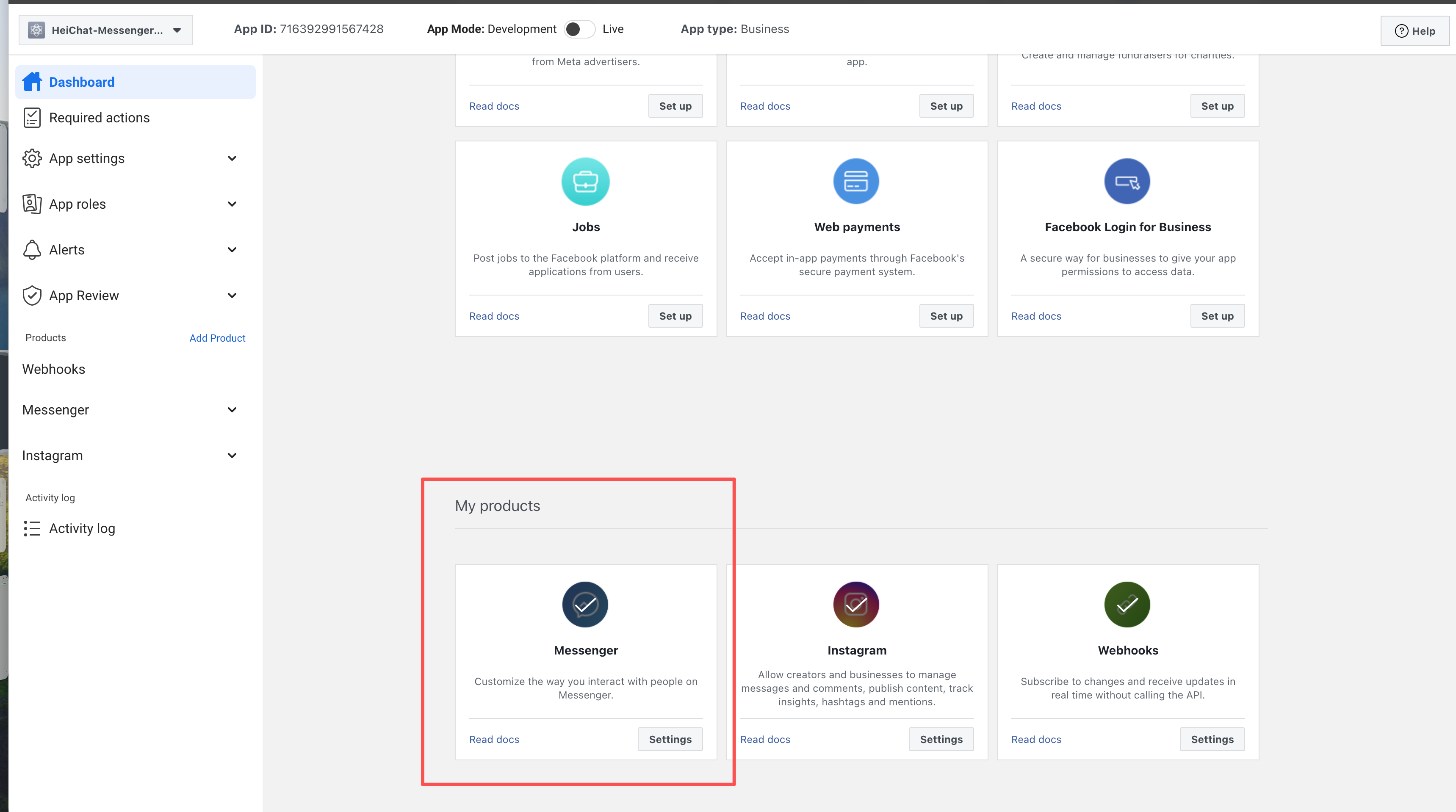
- Locate Add products to your app in your app's dashboard tab.
- Choose Messenger for setup.
- Select your Meta (Facebook) Business Account (if not selected in step 2).
- Configure Basic Settings.
- Navigate to App settings > Basic from the sidebar.
- Set the Privacy Policy URL to https://heichat.net/help-center/privacy-policy
- Save changes.
- Set App Mode to Live.
Step 4: Configure Messenger API Webhook settings
- Verify Messenger Webhook Callback.
- In the Meta Developer Dashboard, navigate to Messenger > Messenger API settings.
- Copy the Callback URL and Verification Token from the HeiChat Messenger Integration page (or HeiChat email) to your Messenger Developer Dashboard.
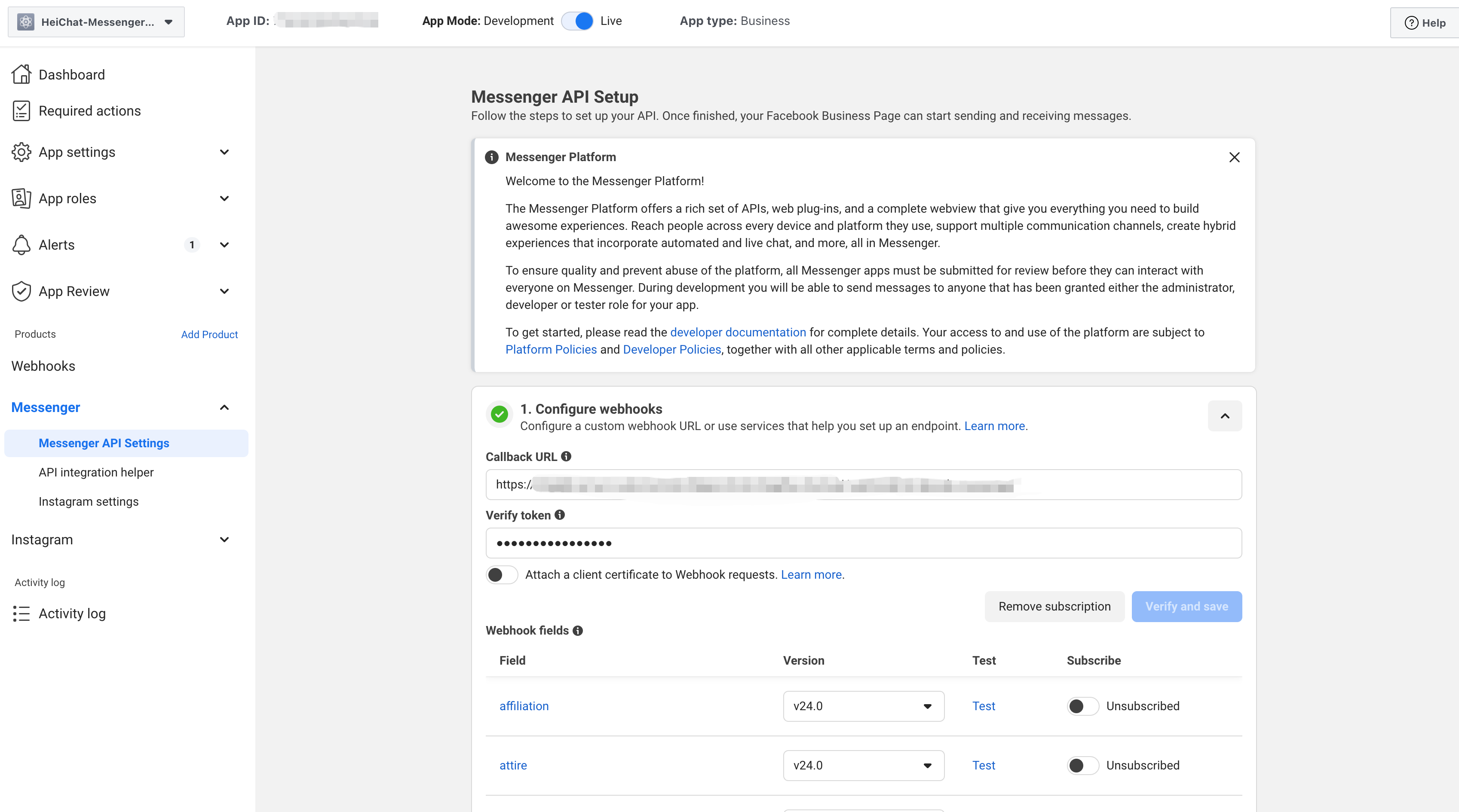
- Click Verify and save.
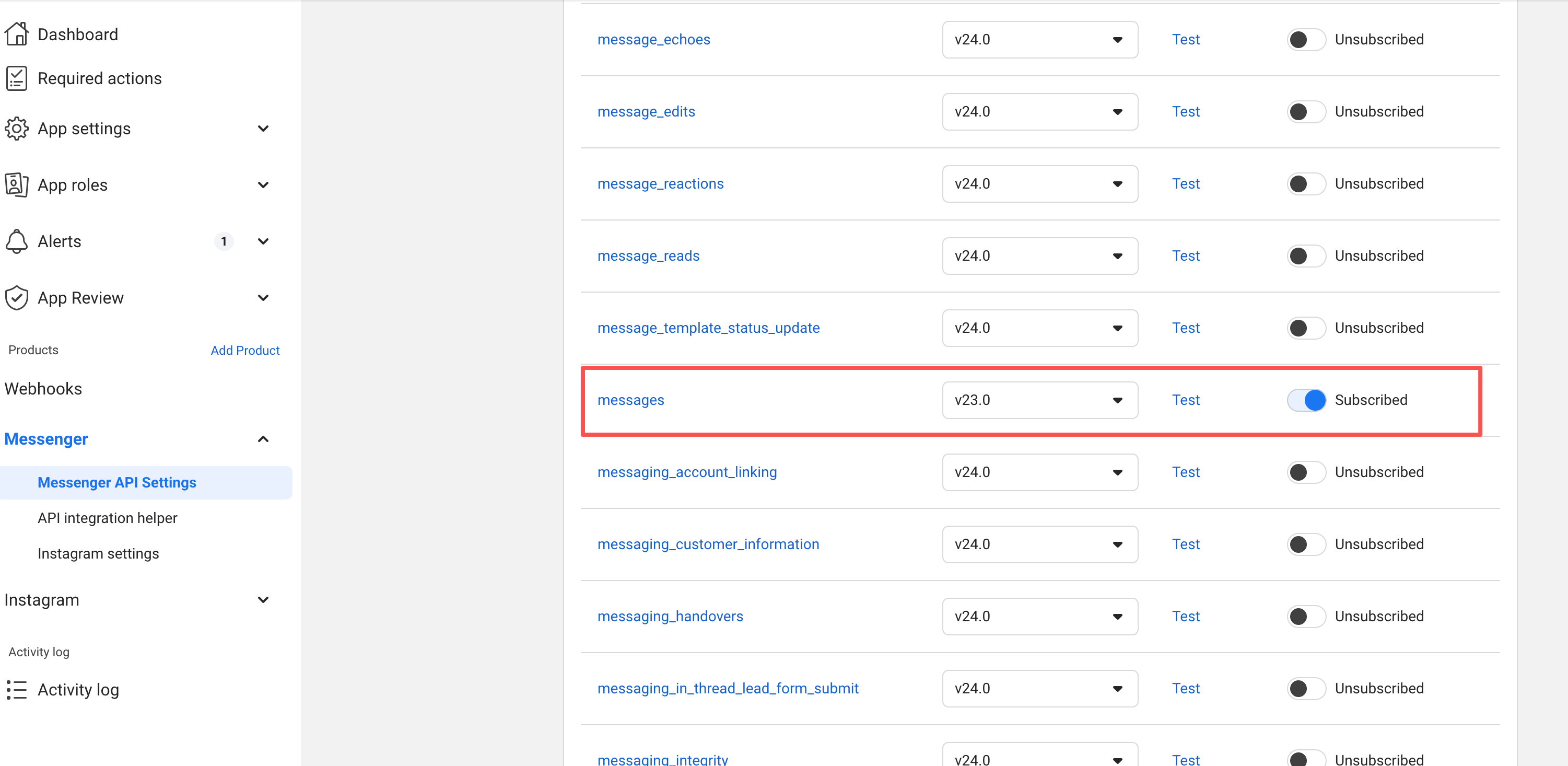
- Configure Webhook Subscription Field.
- Under "Webhook Fields," click Manage.
- Find the
messagesfield and subscribe to it by checking the box.
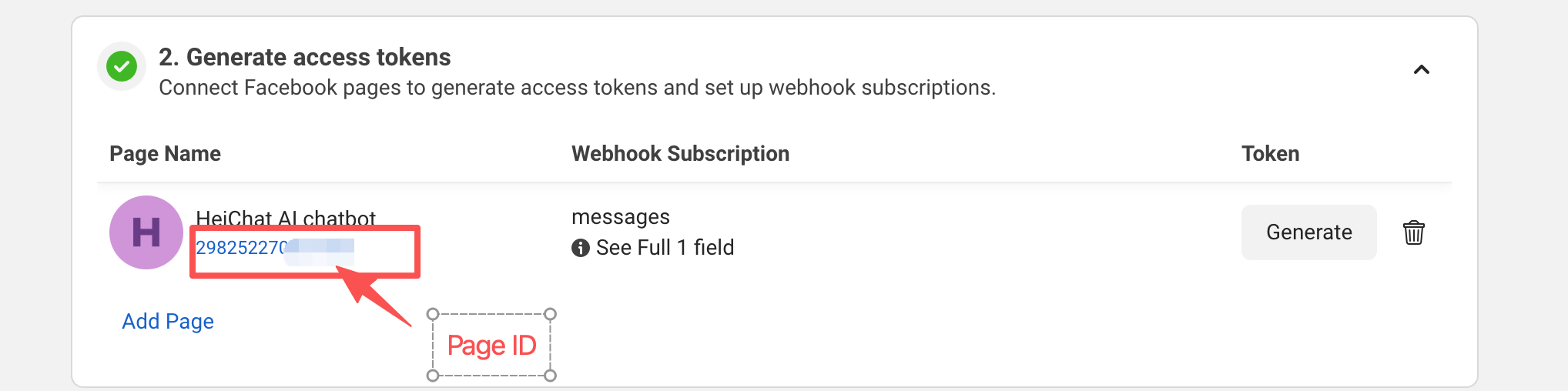
Step 5: Generate access tokens and get page ID
- Choose a page to link.
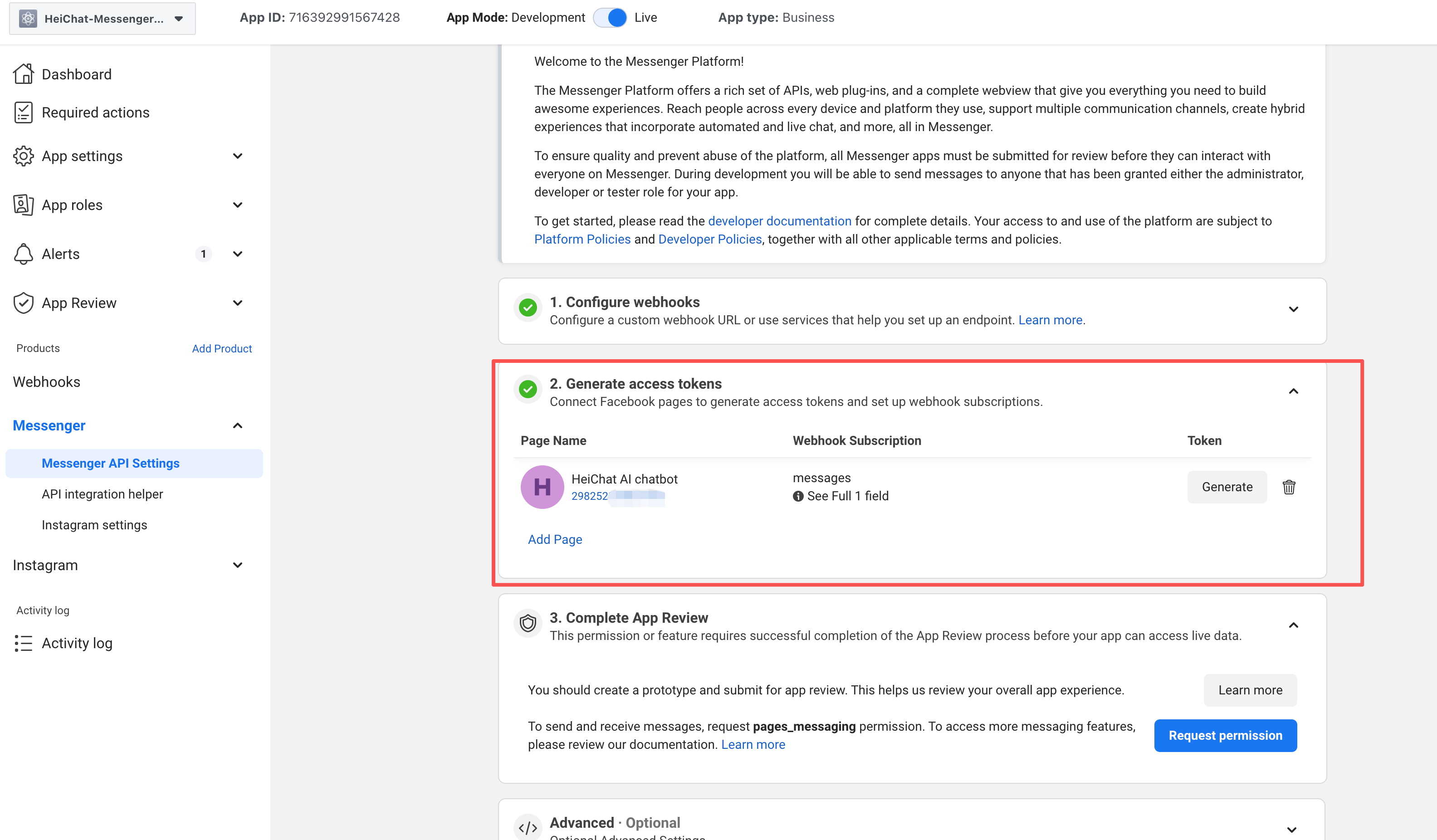
- Generate access token.
Step 6: Connect your Messenger account with HeiChat
- Retrieve Messenger Account Information
- Copy the page access token generated from Step 5.
- Copy your page ID.
- Paste them into the HeiChat backend and save.
If you have any problems, feel free to contact HeiChat at heicarbook@gmail.com.