

Connect Instagram to HeiChat
Connect your Instagram professional account so HeiChat can reply to customers on Instagram. Start in HeiChat, authorize access on Instagram, then return to HeiChat to confirm the connection.
Before you connect
You'll need an Instagram professional account — either a Business or Creator account — and access to sign in to it.
If you don't have a professional account yet, start the connection flow below. Instagram will guide you through creating one or switching an existing personal account to a professional account before you finish connecting.
You can connect up to 5 Instagram accounts to HeiChat. Repeat the connection steps for each account you want to add.
Beta: Instagram OAuth is in beta testing. Instagram messages consume HeiChat tokens. If you run into issues, contact heicarbook@gmail.com.
Connecting your Instagram account
Step 1 — Start from HeiChat
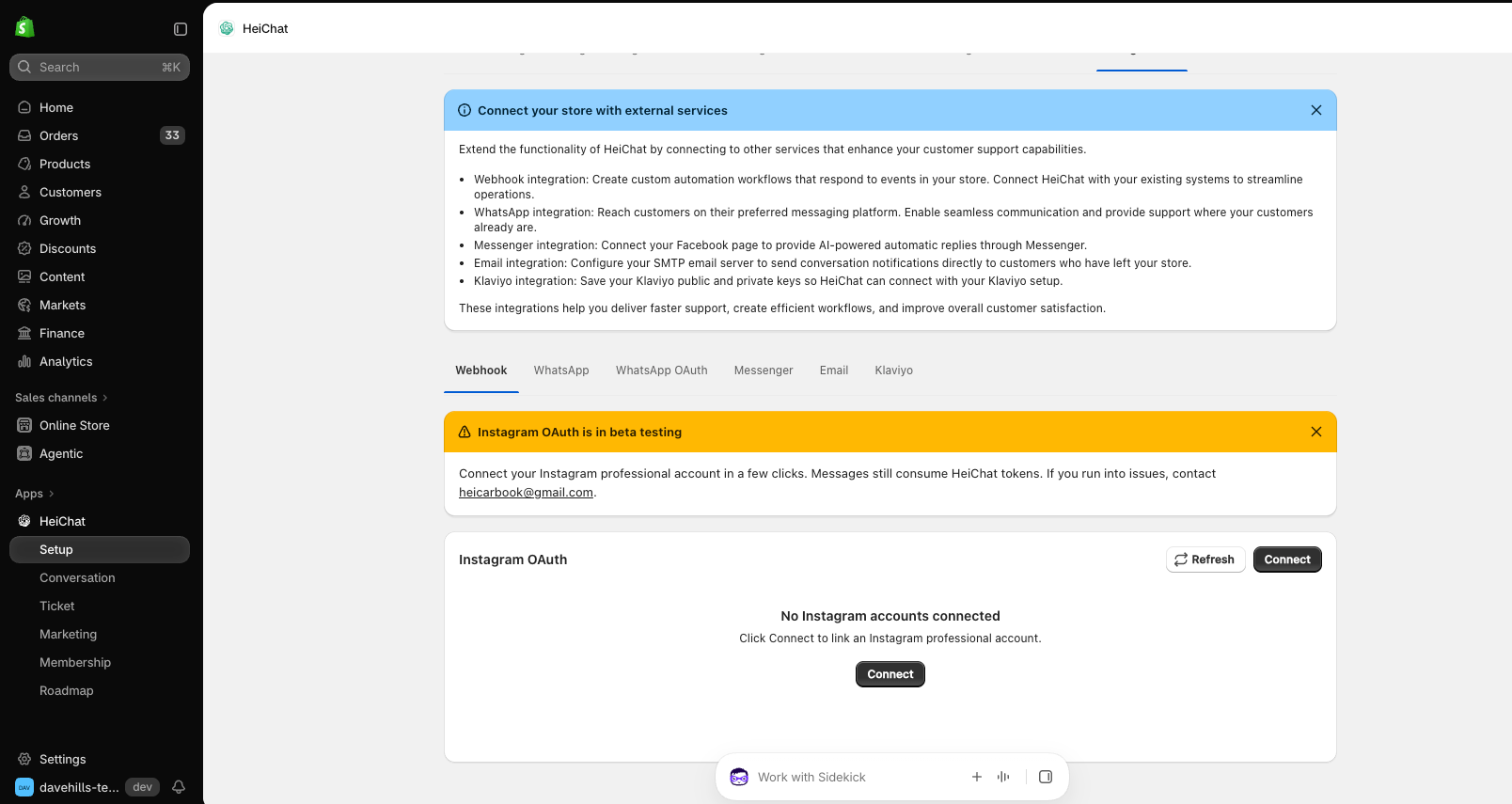
Open HeiChat → Setup → Integrations → Instagram. On the Instagram OAuth card, click Connect.
If you haven't connected an account yet, the card shows No Instagram accounts connected.
Step 2 — Continue to Instagram
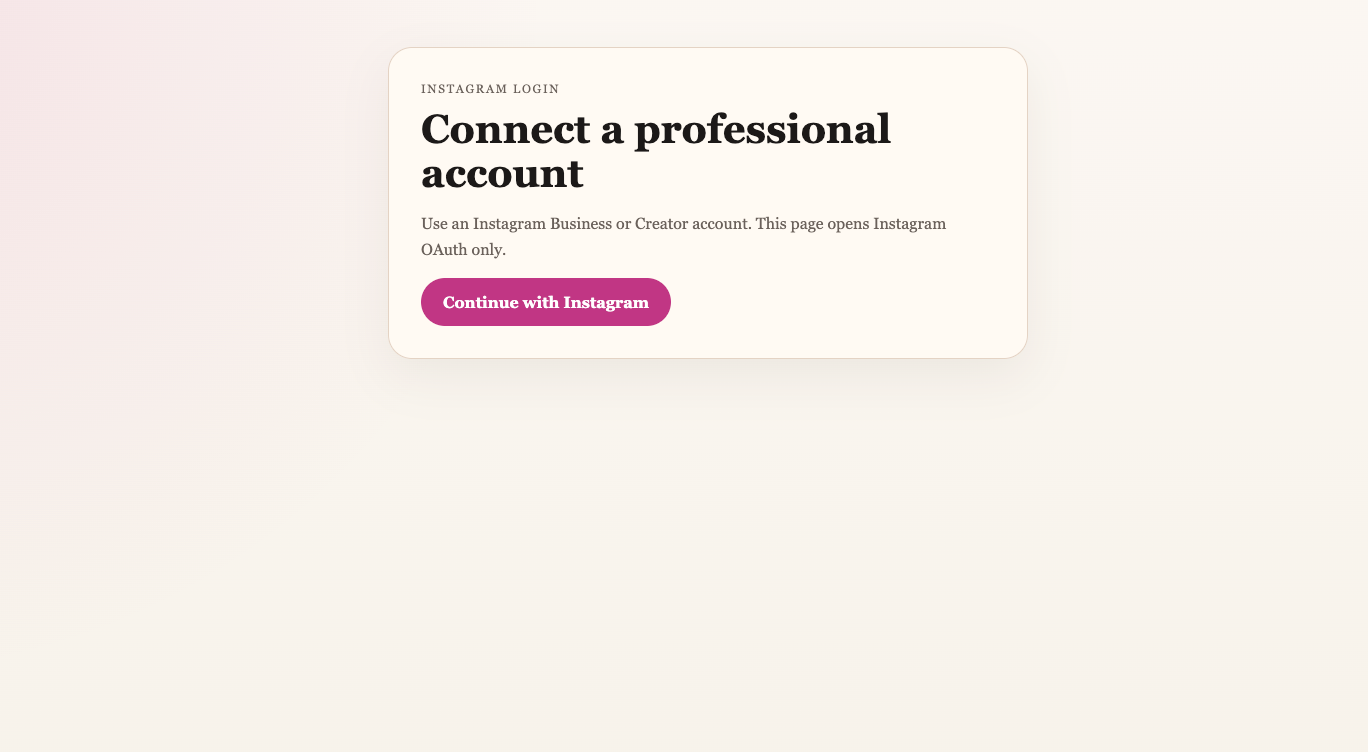
HeiChat opens a separate authorization page titled Connect a professional account. Click Continue with Instagram to go to Instagram's sign-in and authorization screens.
Step 3 — Authorize the connection
Follow Instagram's on-screen instructions:
- Sign in to the Instagram account you want to connect, if prompted. Check that it is the correct account before continuing.
- If the account is a personal account, follow the prompts to switch to a professional account. If you need a new account, complete the professional account creation steps.
- Review the access requested by HeiChat and approve it to complete the authorization.
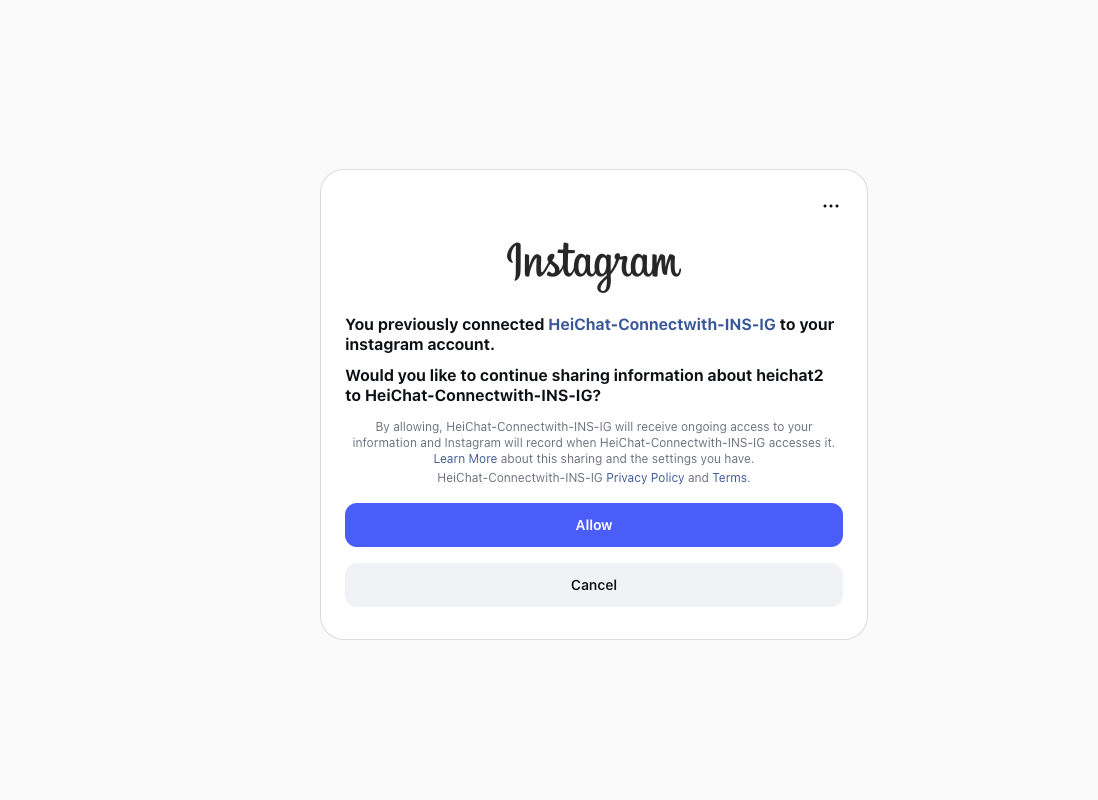
If you've connected this account before, Instagram may ask whether you want to continue sharing information with HeiChat. Check the account shown, then click Allow.
Step 4 — Wait for the success message
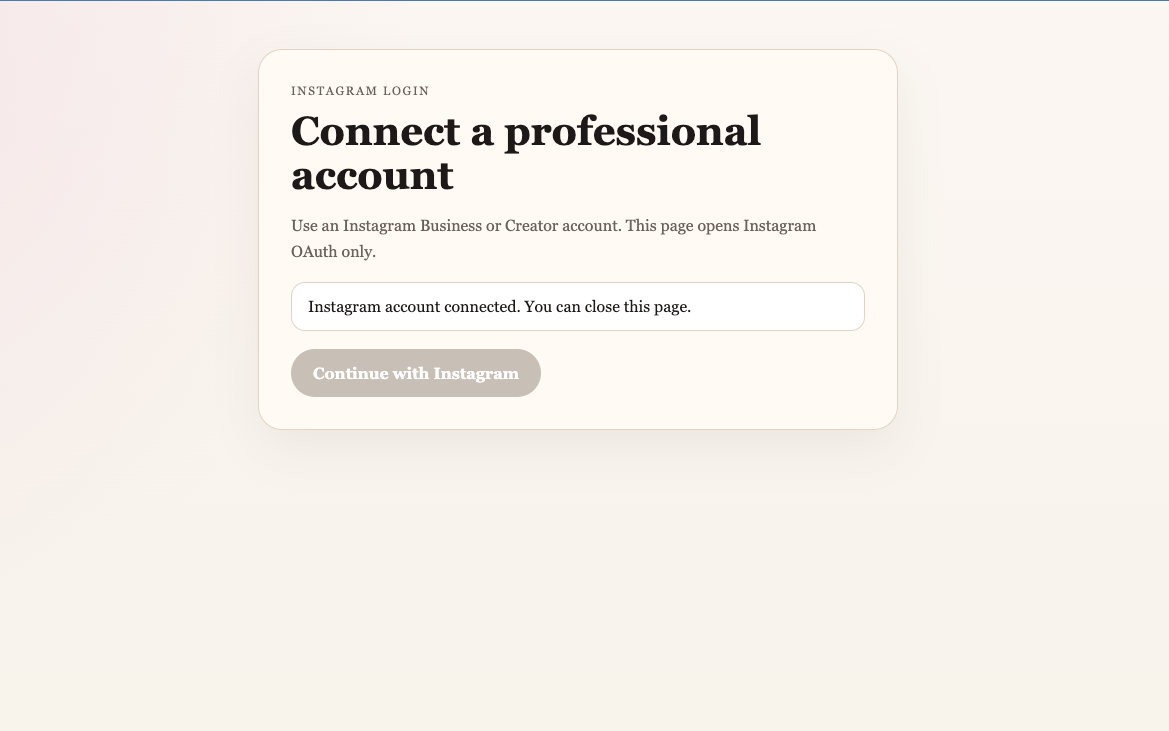
After authorization, Instagram returns you to the authorization page. A successful connection shows:
Instagram account connected. You can close this page.
Once you see this message, close the authorization page and return to HeiChat.
Step 5 — Refresh HeiChat and check the account
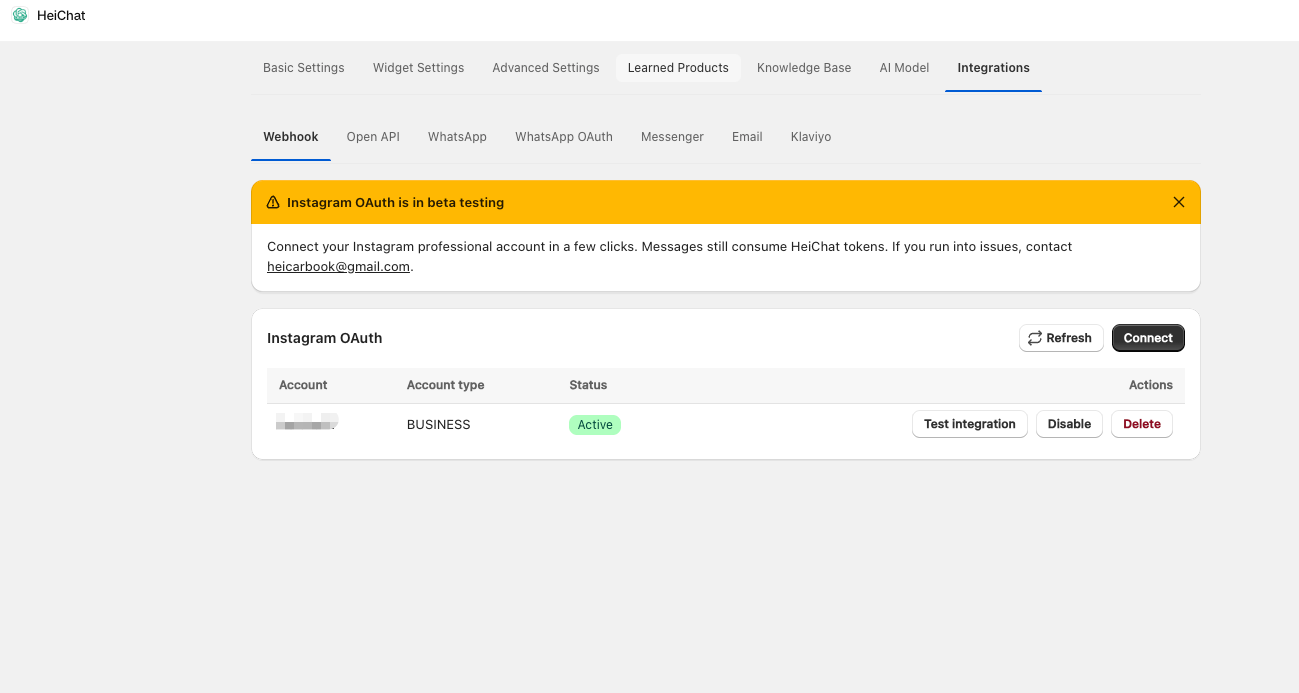
Return to HeiChat → Setup → Integrations → Instagram and refresh the page, or click Refresh on the Instagram OAuth card.
The connected account now appears in the list with its Account, Account type, and Status. Check that the account is the one you intended to connect and that its status is Active.
Managing connected accounts
Open HeiChat → Setup → Integrations → Instagram to manage your connections.
Temporarily pause replies
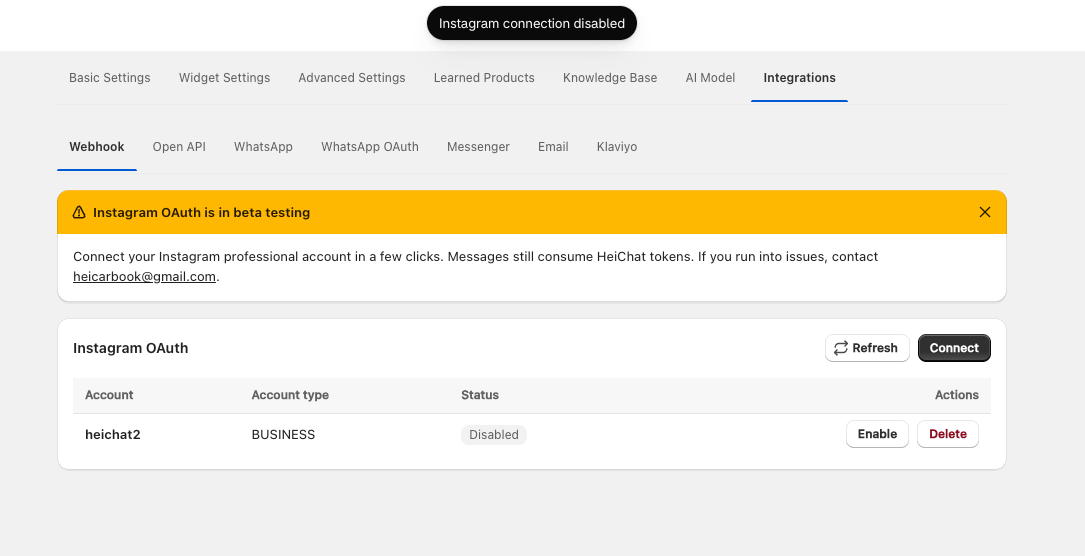
Click Disable beside the account you want to pause. Its status changes to Disabled, and the action changes to Enable. When you're ready to resume replies, click Enable.
Remove a connection
Click Delete beside the account you want to disconnect. To connect it again later, click Connect and complete the authorization flow again.
If something goes wrong
The authorization page doesn't open.
Allow pop-ups for HeiChat in your browser, then click Connect again.
Instagram asks for a professional account.
Use a Business or Creator account. Follow Instagram's prompts to create a professional account or switch your existing personal account, then finish authorization.
Authorization succeeded, but the account isn't listed in HeiChat.
Check that the authorization page displayed Instagram account connected. You can close this page. Then return to Setup → Integrations → Instagram and click Refresh, or refresh the HeiChat page.
HeiChat replies are paused for a connected account.
Check its status in the account list. If it shows Disabled, click Enable to resume replies.
If you still need help, contact heicarbook@gmail.com with your Instagram username and a description of the step where you're stuck.