

Product FAQ
Requires Pro Plus or above.
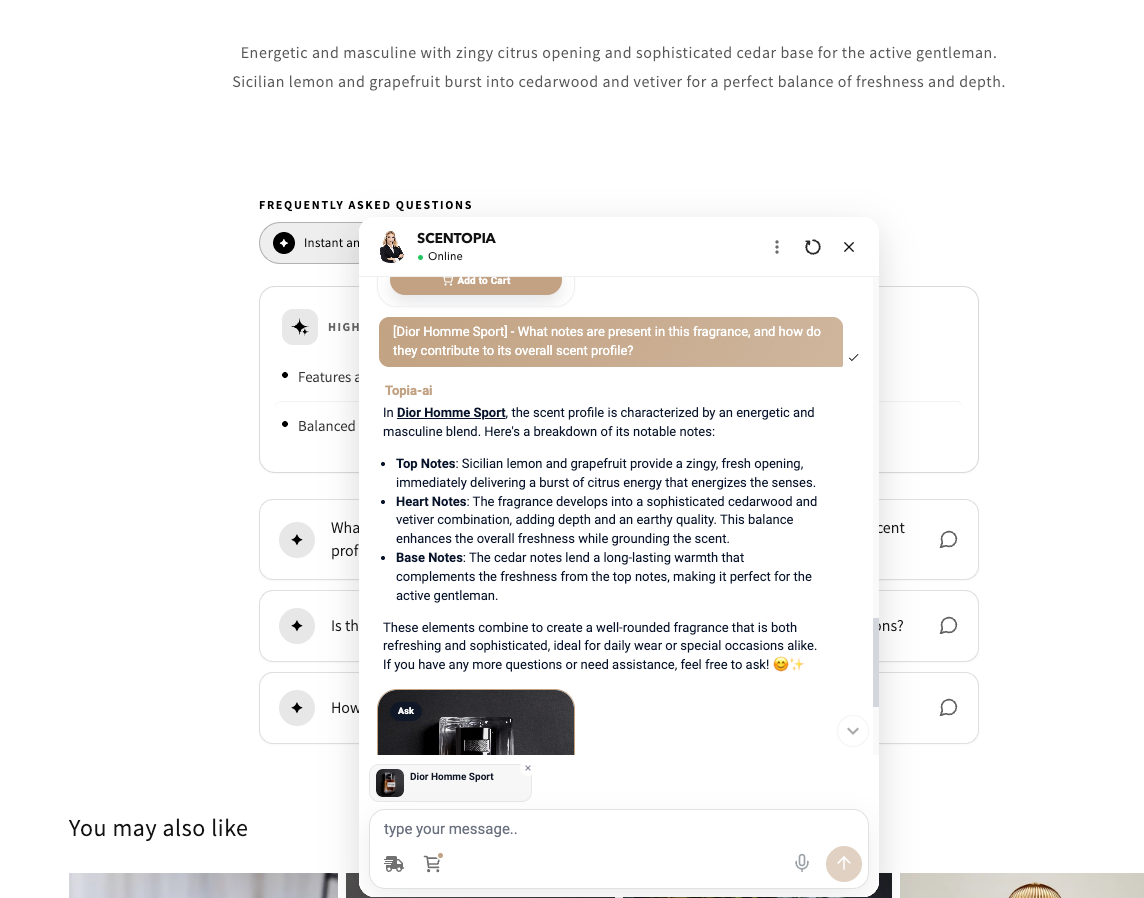
Product FAQ lets HeiChat automatically generate product-specific FAQ questions and key highlights, shown directly on product pages. Each question is tappable — shoppers who select one open a live HeiChat conversation with that question already loaded, and get an answer grounded in current product information.
1. Enable Product FAQ
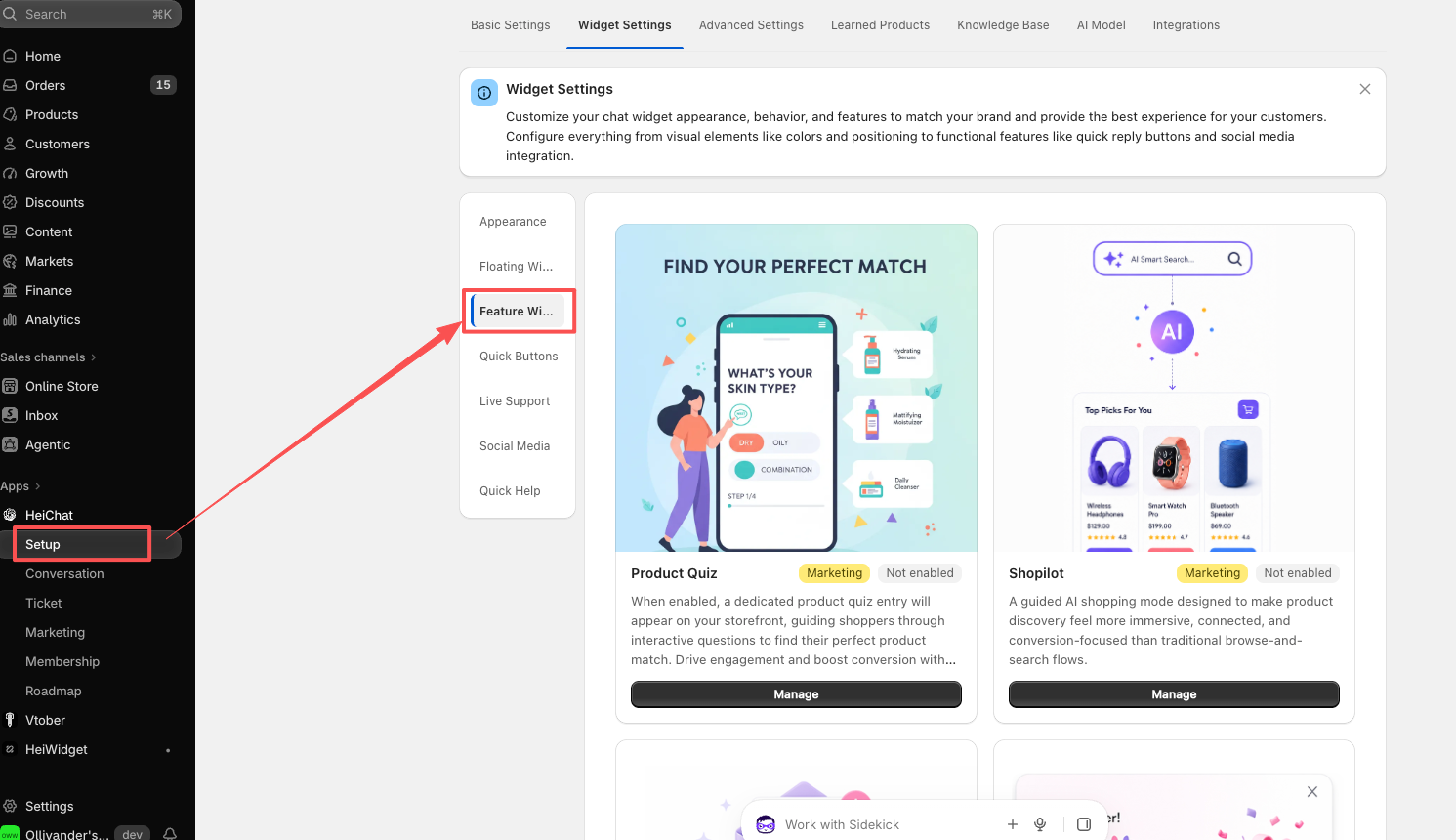
Go to Setup > Widget Settings > Feature Widgets.
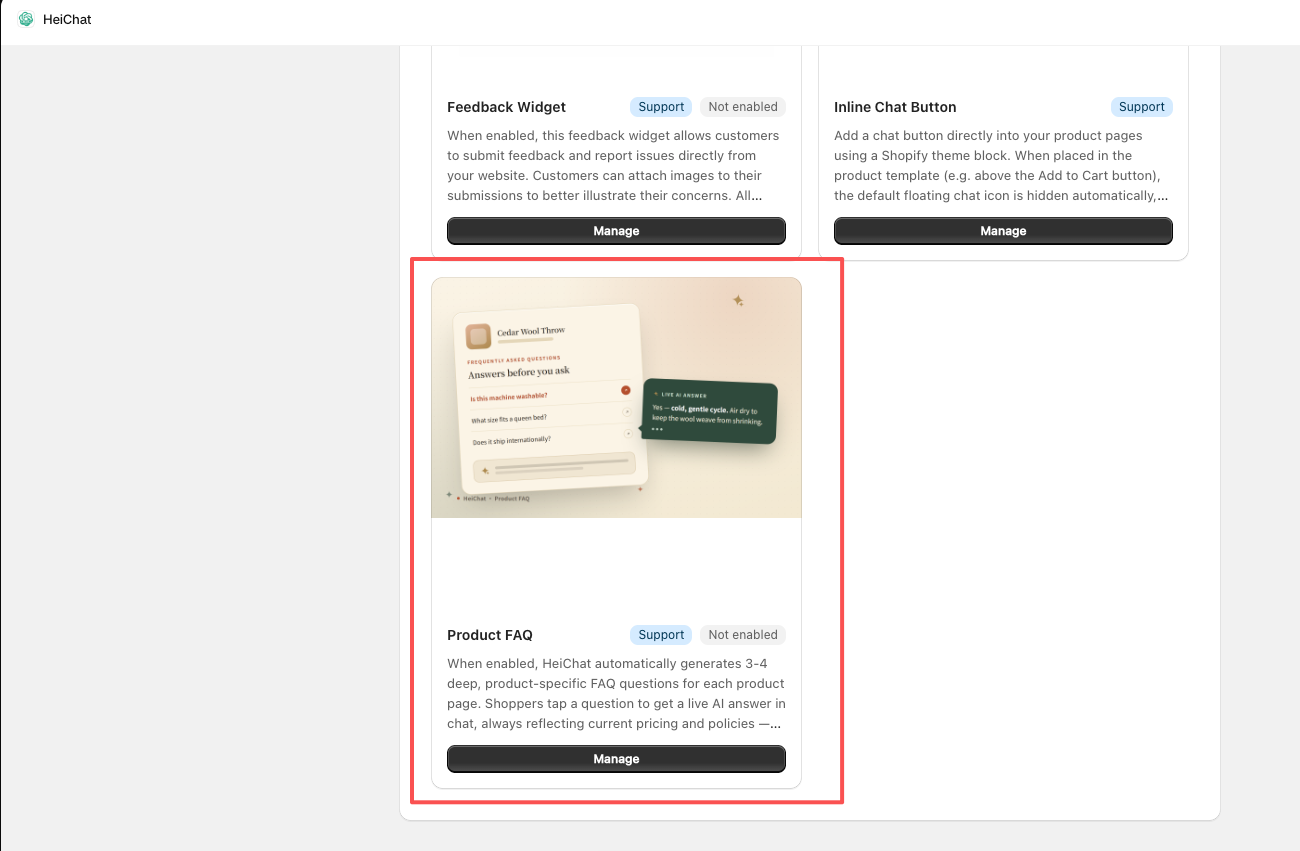
Find Product FAQ in the feature widget list and open it.
Turn on Enable Product FAQ and choose the languages you want FAQ to be generated in. English is selected by default.
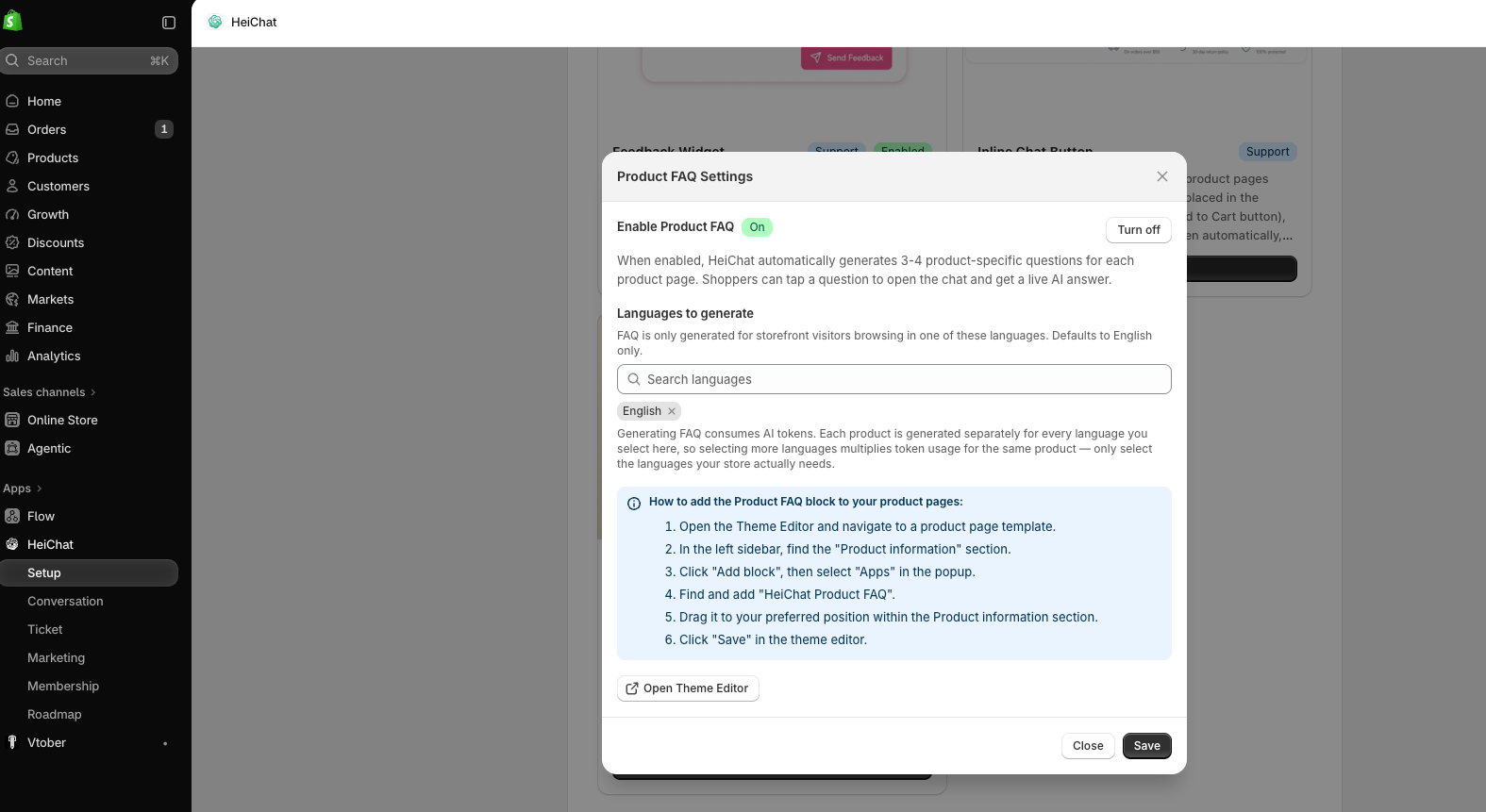
Save the settings.
2. Add the App Block in Theme Editor
Enabling the setting above prepares FAQ generation, but the block must also be added to your product template before anything appears on the storefront.
- In Shopify admin, go to Online Store > Themes and click Customize.
- Navigate to a product page template.
- In the left sidebar, find the Product information section.
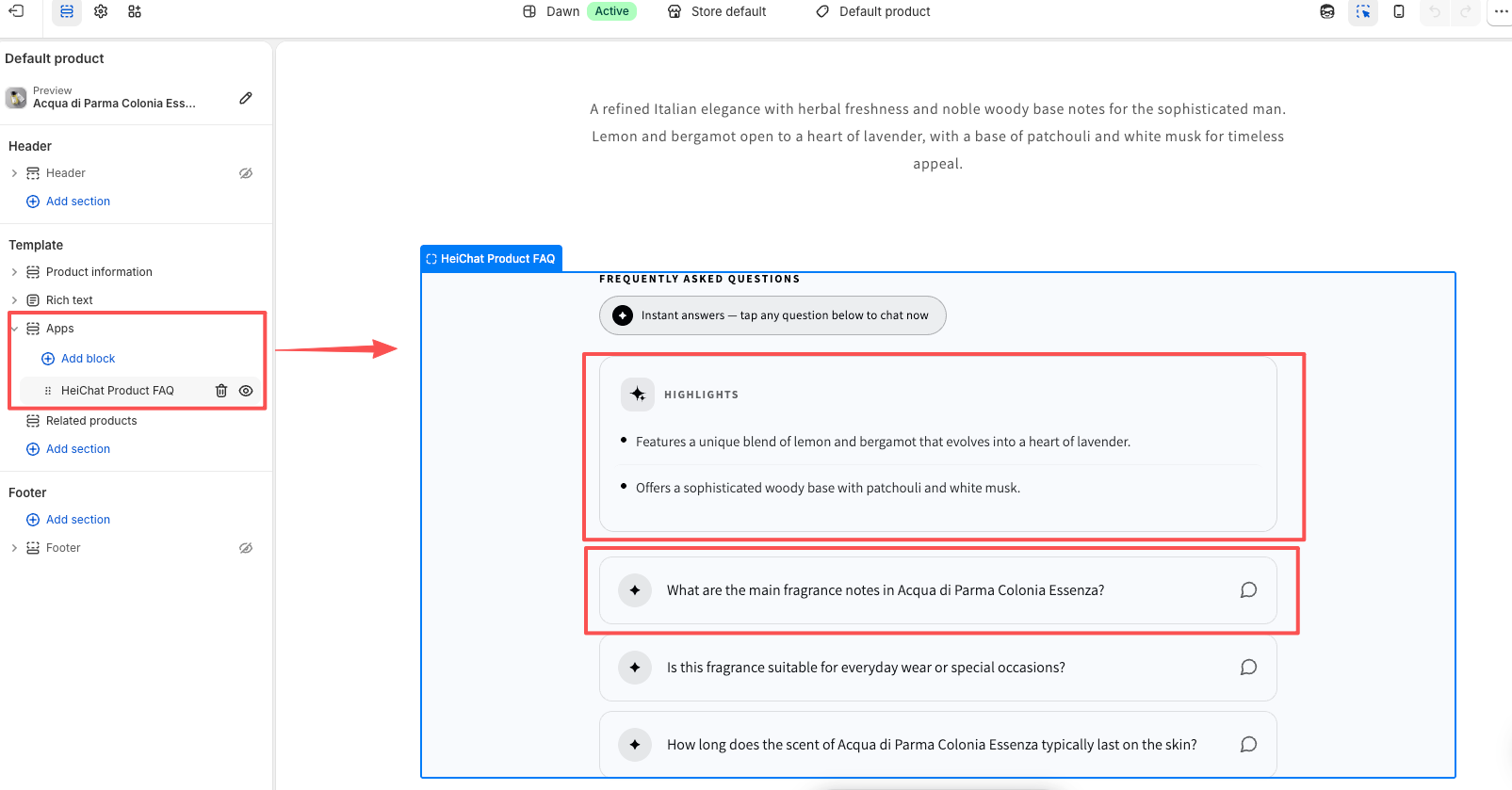
- Click Add block, then choose Apps in the popup.
- Find and add HeiChat Product FAQ.
- Drag it to your preferred position within the Product information section.
- Click Save.
3. How FAQ Is Generated
FAQ is generated the first time any visitor views a product page in one of the selected languages. This includes real shoppers and AI web crawlers. Once a product's FAQ is cached, subsequent visits return the existing content without triggering a new generation.
If a product's page does not contain enough information for the AI to write meaningful, product-specific questions, generation is skipped and logged rather than producing generic content.
Once a product has FAQ, shoppers see the questions and highlights directly on the page. Tapping a question opens HeiChat with that question pre-loaded.
Why visit-triggered generation helps with AI search
Because generation is triggered on the first visit rather than run in batch ahead of time, AI crawlers that index product pages for search and shopping surfaces immediately see structured FAQ data. There is no lag between a product going live and structured content being available to crawlers.
4. Review and Manage Generated FAQ
Once any product has FAQ, go to Setup > Learned Products > Generated FAQ to review and configure it.
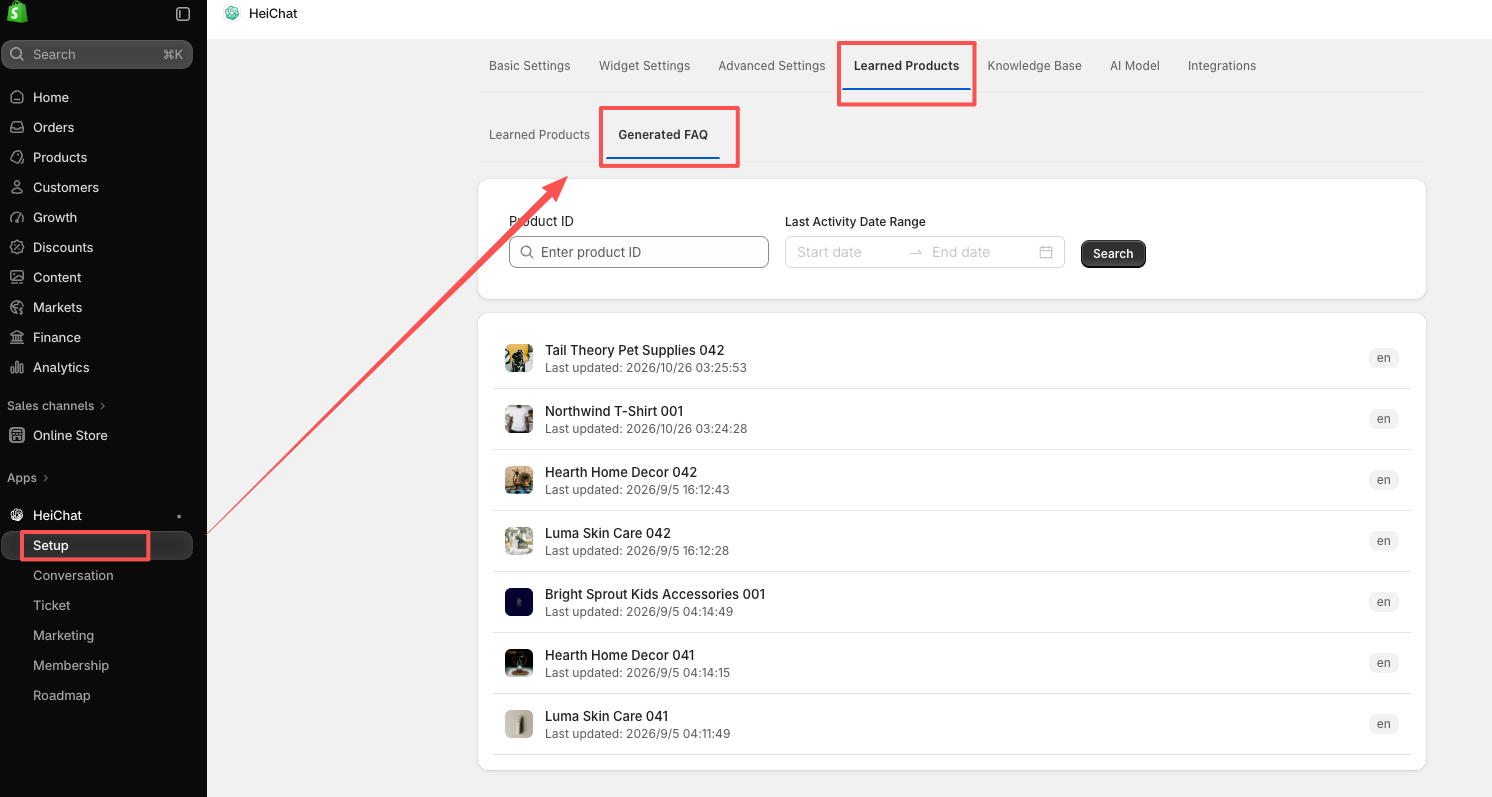
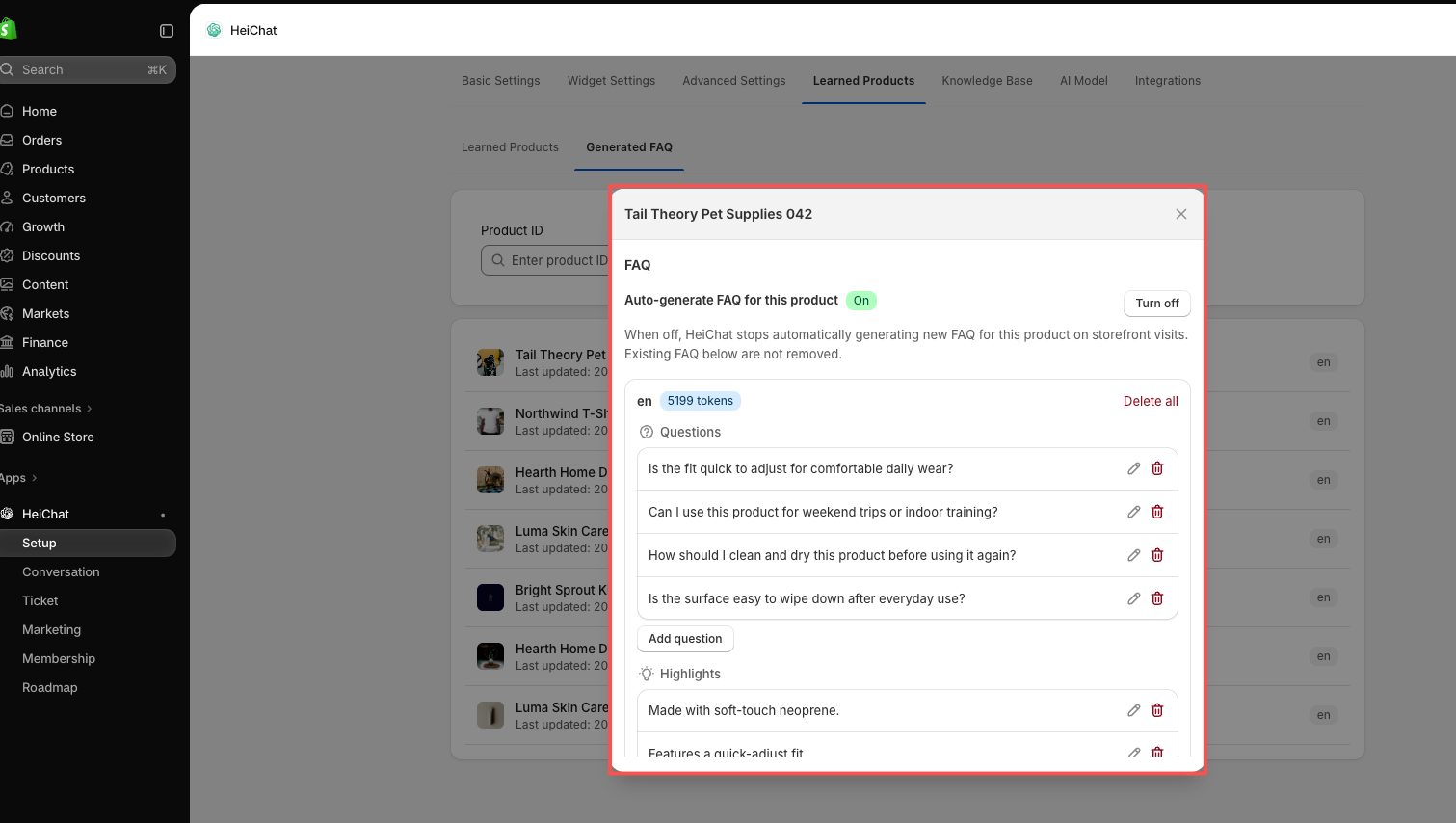
For each product you can:
- Enable or disable FAQ for that specific product without affecting others.
- Edit or delete individual questions and highlights.
- Review the full generation history, including language, generation type, and token cost.
- Regenerate the source language when a product has insufficient content and needs updating.
Multiple languages: when more than one language is selected, one is the source language. Manually editing or regenerating applies to the source. Other selected languages update from the source automatically in the background.
If a language already has questions, edit the text directly in place rather than regenerating. If the source language was declined (insufficient product information), a Regenerate button appears alongside a hint and a shortcut to that product's edit page in Shopify admin.
Recommended use cases
- Product pages with detailed titles, descriptions, and variants — thin or templated listings produce weaker results.
- Stores that receive repetitive pre-purchase questions about materials, sizing, compatibility, or care instructions.
- Multi-language storefronts that want FAQ content to match the shopper's browsing language.