

Connect a new WhatsApp number with OAuth
The fast route: connect a brand-new number through Meta's approval screens, and let your AI agent answer WhatsApp customers with the order and product data already in your Shopify store.
What changes once WhatsApp is connected
WhatsApp becomes another channel your AI agent runs. Customers message the number you connect; HeiChat picks up the conversation and replies with the same agent, knowledge, and settings that already run your website widget. There is nothing to rebuild or duplicate.
Three things are worth knowing up front.
Your agent answers from your Shopify store. Order lookups and product questions are handled from your live store data — order status and details, and the products in your catalog. HeiChat reads that data straight from Shopify, so there is nothing to sync or import. Anything your store data doesn't cover is answered from your Knowledge Base, where your policies, FAQs, and shipping rules live. Store data comes from Shopify; everything else comes from the Knowledge Base.
Every conversation is readable in HeiChat. WhatsApp threads appear under Conversation in the HeiChat menu. Set Data Source to WhatsApp to narrow the list to WhatsApp only — useful when you want to review what was said without website widget chats mixed in.
You authorize the connection yourself, at Meta. HeiChat never asks for your Facebook password. You sign in on Meta's own screens, choose which business assets HeiChat may use, and confirm the permissions.
What you'll need
- A phone number you can dedicate to this — one that isn't in use in the WhatsApp or WhatsApp Business app.
- A Facebook account with admin access to a business portfolio, or permission to create one.
- About 5–10 minutes.
Heads-up: WhatsApp OAuth is in beta testing. Messages over WhatsApp still consume HeiChat tokens, and Meta bills for WhatsApp messaging on top of that. If something doesn't work, contact heicarbook@gmail.com.
Two ways to connect WhatsApp
HeiChat has two ways to connect a WhatsApp number. Both end in the same place — your AI agent answering WhatsApp conversations with your Shopify store data and Knowledge Base — but they suit different situations, and only one of them works for a number you already have.
WhatsApp OAuth — the fast path, which this guide covers. You sign in with Facebook and approve a few of Meta's own screens. You never open Meta's developer tools, never generate access tokens, and never wire up a webhook. The trade-off: it only accepts a new number, one that has not been registered on WhatsApp yet.
Manual WhatsApp Business API setup — the original path. You register your own Meta app, create a system user and a permanent access token, add and verify the number, copy webhook credentials into Meta's dashboard, then paste the token and number into HeiChat. It takes far longer and assumes some familiarity with Meta's developer console. In exchange, it can connect a number you already own — including one already in use with WhatsApp.
Take the manual route if the number you want is already registered with WhatsApp and you need to keep it. Take this guide if you can dedicate a new number — it gets you to an answering AI agent much faster.
Choosing the number you'll connect
It has to be a number you can dedicate
A number can only live in one place at a time. Once it is connected to HeiChat, it belongs to HeiChat — it cannot also be used in the WhatsApp or WhatsApp Business app on a phone.
This is the one hard limit of the OAuth route: it cannot take over a number that is already registered on WhatsApp. If you need to keep such a number, the manual setup is the route for you.
Clear any WhatsApp account already on it
If the number is currently active in the WhatsApp or WhatsApp Business app, delete that account before connecting it:
- Open the WhatsApp or WhatsApp Business app on the phone that holds the number.
- Go to Settings → Account.
- Tap Delete my account.
- Wait a few minutes for WhatsApp to release the number.
Warning: Deleting the account permanently removes the chat history and account data tied to that number. Back up anything you need first.
Clear two-step verification if Meta already knows the number
If this number has been used with Meta for business before, turn two-step verification off first — leaving it on is a common reason the connection fails:
- Sign in to your WhatsApp Business Account.
- Choose the phone number you want to connect.
- Go to Settings → Two-step verification and turn it off.
Have a display name ready
The display name is what customers see when you message them. It has to meet Meta's display name guidelines and be approved before the number can go live. Meta explains the requirements here.
Connecting the number
The connection runs in three phases: you start it in HeiChat, work through Meta's screens, then land back in HeiChat to confirm. Use the same browser the whole way — the flow carries state between HeiChat and Meta.
Phase 1 — Start from HeiChat
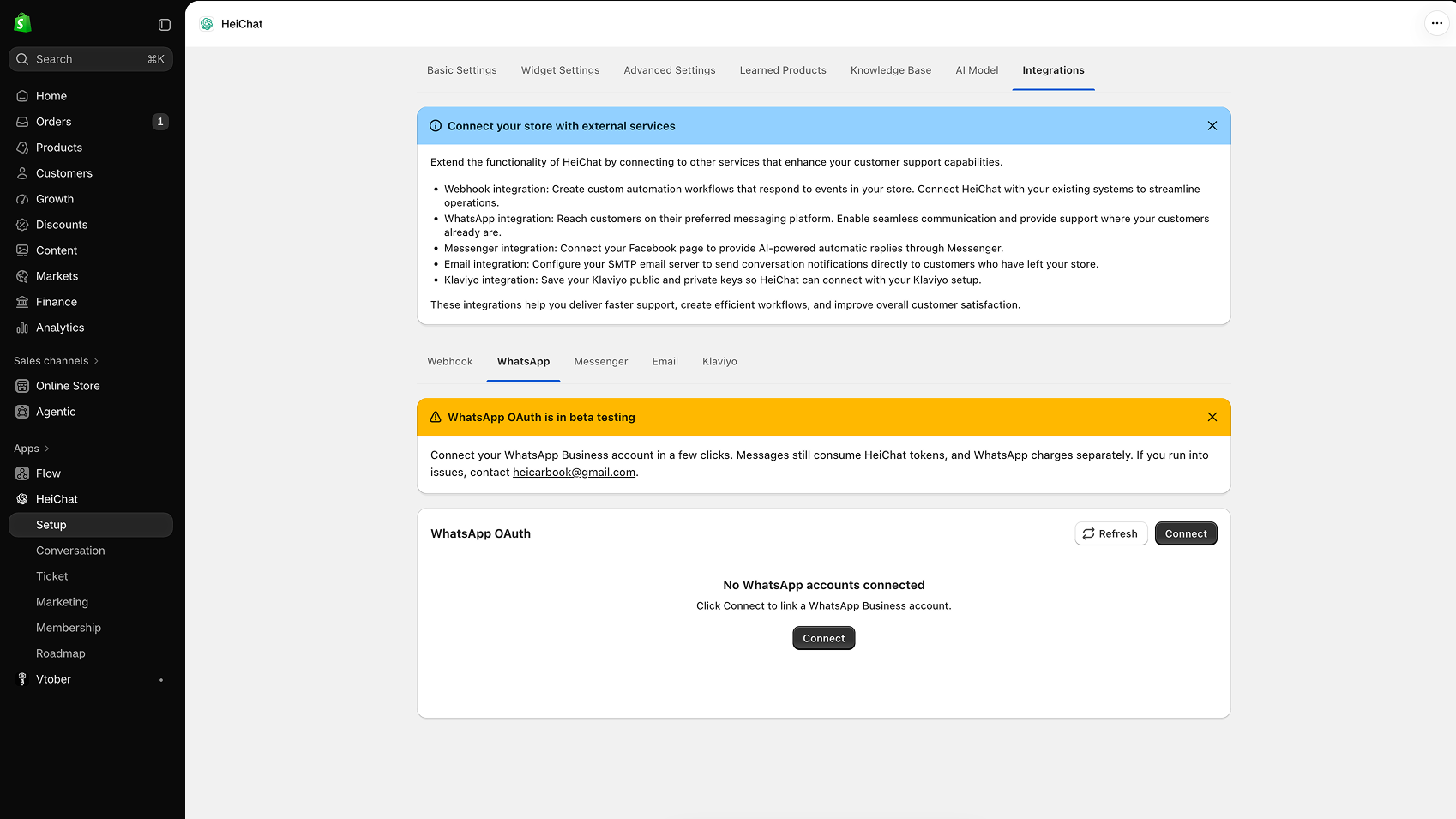
Open Integrations in the top navigation, select the WhatsApp tab, and click Connect on the WhatsApp OAuth card. If nothing is connected yet, the card reads "No WhatsApp accounts connected."
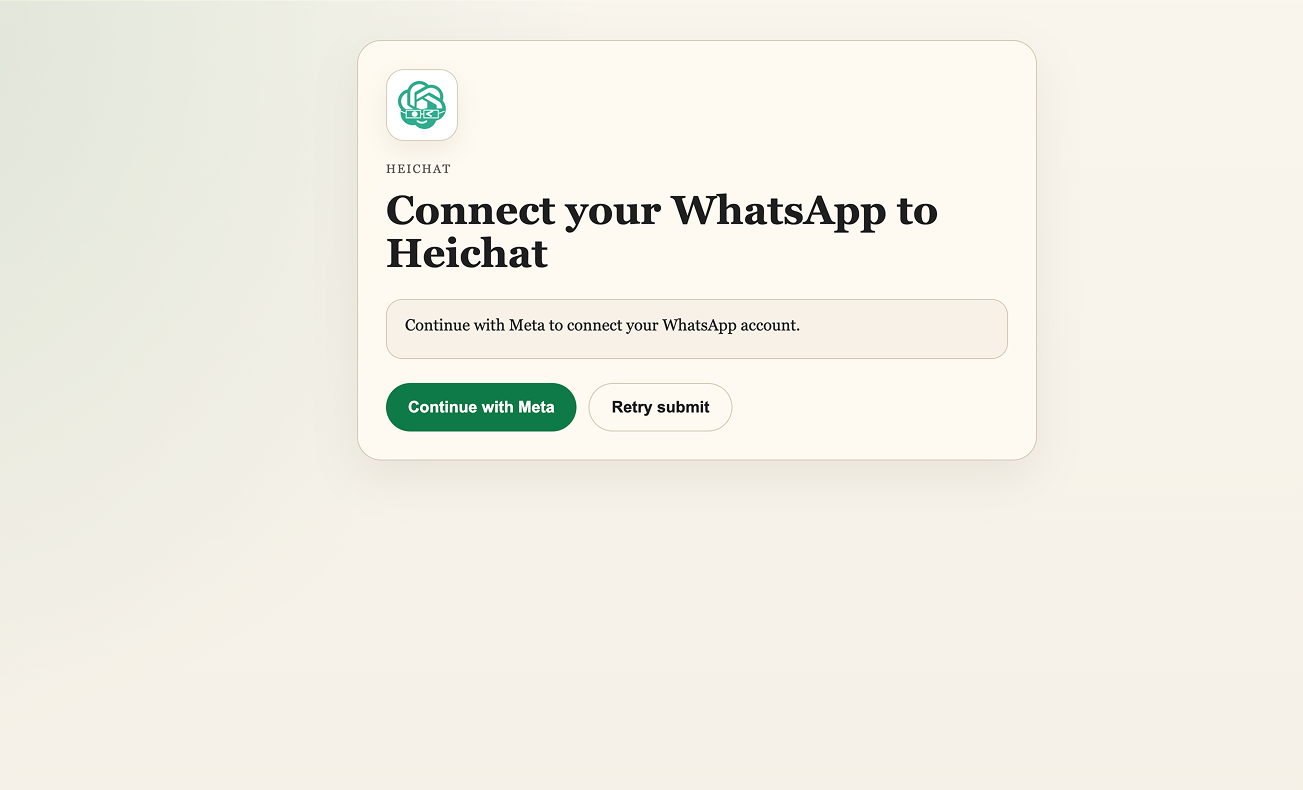
HeiChat then opens its WhatsApp binding page. Click Continue with Meta.
Phase 2 — Work through Meta's screens
Meta takes over from here. If you aren't already signed in to Facebook you'll be asked to sign in — use the account that manages your business portfolio, or one allowed to create a new one, because it keeps managing this connection afterwards.
First comes Meta's onboarding summary. This is the standard WhatsApp Business Platform Cloud API onboarding, presented by the HeiChat app. Read it and click Continue to accept the WhatsApp Business Platform Cloud API Terms and the Meta Terms for WhatsApp Business.

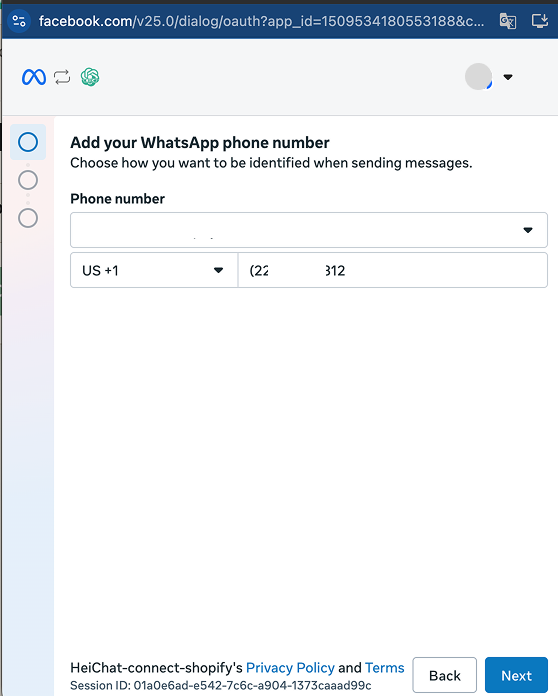
Next, register the number you're dedicating:
- Choose how you want to be identified when sending messages.
- Select the country code.
- Enter the phone number.
- Click Next.
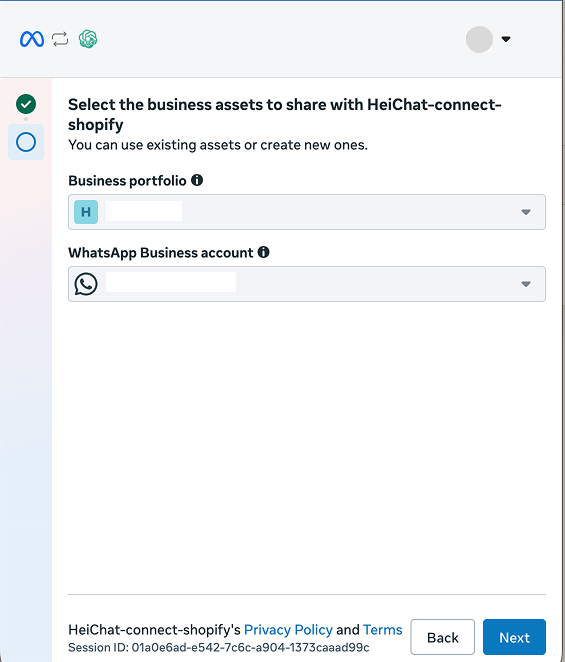
Then choose which assets HeiChat may use. You can pick existing assets or create new ones:
- Business portfolio — the portfolio that owns the number.
- WhatsApp Business account — the WhatsApp Business account (WABA) to connect.
- Click Next.
Tip: One number per WhatsApp Business account keeps things easy to tell apart later, especially if you plan to connect several numbers.
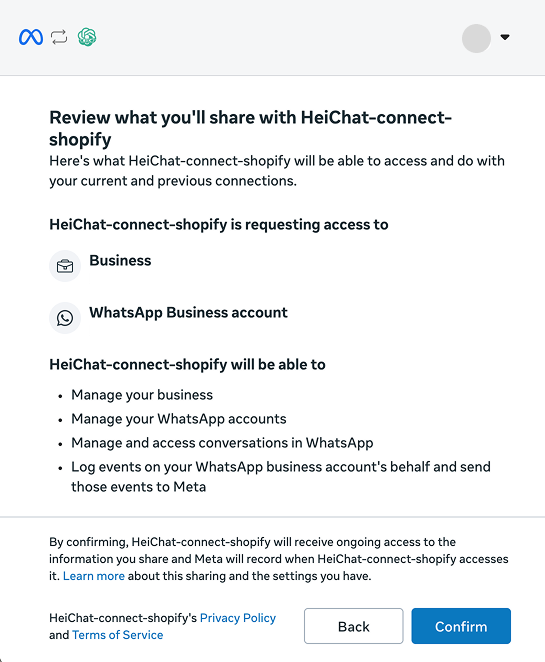
Meta then shows exactly what HeiChat is asking for:
- Business — manage your business
- WhatsApp Business account — manage your WhatsApp accounts
- Conversations — manage and access conversations in WhatsApp
- Events — log events on your WhatsApp business account's behalf and send those events to Meta
Check that the business and WhatsApp Business account listed are the ones you want, then click Confirm.
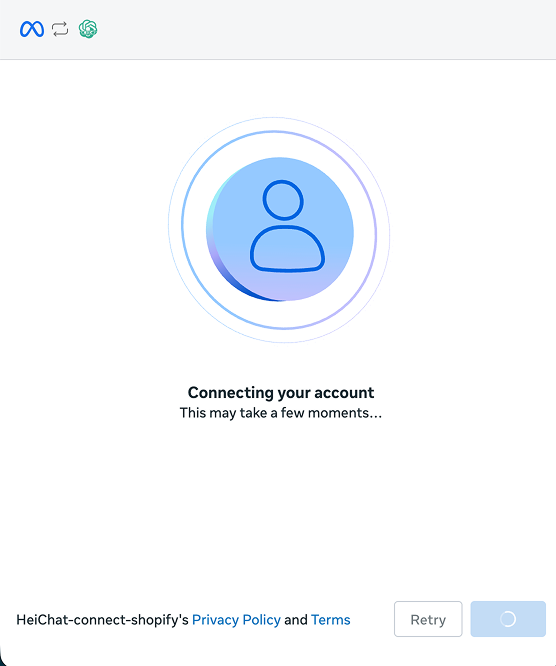
Meta now connects the account. This usually takes a few seconds — leave the window open. If it sits for more than a minute, click Retry.
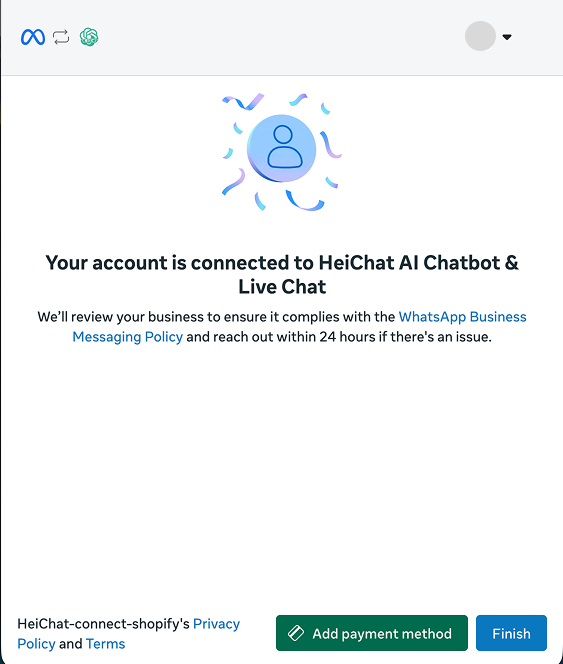
When it succeeds, Meta confirms the account is connected and notes that your business will be reviewed for compliance with the WhatsApp Business Messaging Policy — Meta reaches out within 24 hours if there's an issue. Click Finish to return to HeiChat. You can also use Add payment method here if you already know you'll be sending high volumes.
Phase 3 — Confirm the number is live
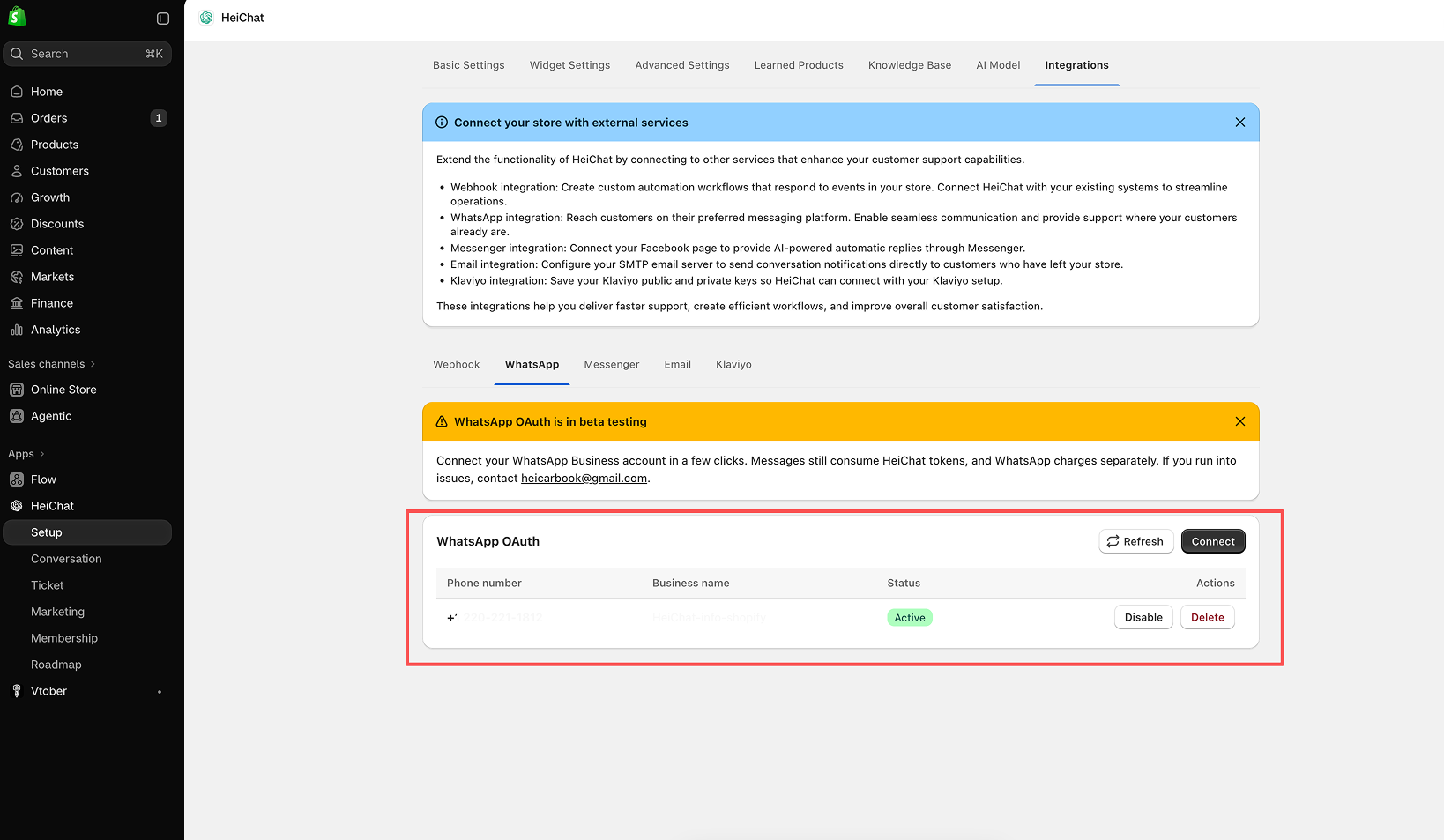
Back in HeiChat, the WhatsApp OAuth card now lists the connection with its Phone number, Business name, and Status. When Status reads Active, HeiChat is handling conversations on that number.
Reading WhatsApp conversations
WhatsApp threads live in the same place as every other channel: open Conversation in the HeiChat menu, then set Data Source to WhatsApp. You'll see the WhatsApp conversations on their own, with each customer's messages and your agent's replies.
To confirm the handover worked end to end, send a message to the connected number from a different phone. It should appear in that WhatsApp view within a moment, and your agent should reply on its own. A freshly connected number can take a short while to start receiving, so give it a minute before trying again.
Managing the connection
Everything connected shows on the same Integrations → WhatsApp card, one row per number. The Actions column holds:
Costs, limits, and rules
- Two bills, not one. WhatsApp messaging is billed by Meta on its own pricing, separately from your HeiChat subscription. Messages over WhatsApp also consume HeiChat tokens, the same as messages on your other channels. To send beyond Meta's free allowance, add a payment method in your Meta billing settings — or use Add payment method at the end of the connection flow.
- The number belongs to HeiChat. A number connected to HeiChat can't also be used in the WhatsApp or WhatsApp Business app.
- Free-form replies last 24 hours. You can reply freely within 24 hours of the customer's last message. After that you have to reach them with an approved message template.
- Meta reviews new businesses. Compliance with the WhatsApp Business Messaging Policy is checked after you connect, and Meta may reach out within 24 hours.
If something goes wrong
The Meta window won't open, or it closes unexpectedly.
Allow pop-ups for your HeiChat admin domain, then click Continue with Meta again. The binding page also offers Retry submit.
"This phone number is already in use."
The number is still registered to the WhatsApp or WhatsApp Business app, or to another Meta account. Clear it first — see Clear any WhatsApp account already on it — then wait a few minutes and retry.
The connection fails at the phone number step.
Two-step verification is still on for that number in your WhatsApp Business Account. Turn it off and retry.
The number shows as Active but no messages arrive.
Check your Meta billing settings. Once the free allowance is used, messaging pauses without a valid payment method. Then send a fresh test message.
The status never becomes Active.
Click Refresh on the WhatsApp OAuth card. If it stays inactive after a few minutes, contact heicarbook@gmail.com with your phone number and business name.